

Last Update July 30, 2026
To fix page indexing issues in WordPress, open the Page Indexing report in GSC and read the exact status Google assigned your URL. Each status points to one cause: a noindex tag, a robots.txt block, a wrong canonical, a redirect, or a content quality gap. Fix the cause the status names, then request indexing once.
I check indexing problems on WordPress sites regularly, and almost every one starts the same way. Someone publishes good pages, waits three weeks, sees nothing in Google, and starts changing things at random. That guessing phase is where days get lost.
Google has already told you what it did with each page and why, in one report most people scroll past. This guide shows you how to read that report, then walks through every WordPress-specific cause behind those statuses, including the ones generic SEO guides skip because they were not written for WordPress.
Why is my WordPress page not indexed by Google?
Your page is not indexed for one of five reasons:
Google was told not to index it, Google could not reach it, Google chose a different URL instead, Google has not gotten around to it yet, or Google crawled it and decided it was not worth indexing. Those five map almost exactly onto the statuses in Search Console, which is why reading the status first saves so much time.
It helps to know the three stages a page passes through. First discovery, where Google learns the URL exists through a link or your sitemap. Then crawling, where Googlebot actually fetches the page and reads it. Then indexing, where Google decides to store it and make it eligible to appear in results.
A page can stall at any stage, and where it stalls tells you what kind of problem you have. “Discovered but not indexed” means it never got crawled. “Crawled but not indexed” means it got read and rejected. Those are completely different problems with completely different fixes.
One thing worth saying before you start fixing: not every unindexed page is a problem. Your tag archives, author pages, thank-you pages and paginated URLs often should not be indexed. Seeing them in the excluded list is normal and healthy. The pages worth investigating are the ones you actually want people to find.
Step 1: Read the status Google gave your page
Before changing a single setting, get the diagnosis. In Google Search Console, open Indexing, then Pages, then scroll to “Why pages aren’t indexed.” You will see your URLs grouped by status. That grouping is the diagnosis, and it turns a week of guessing into ten minutes of targeted work.
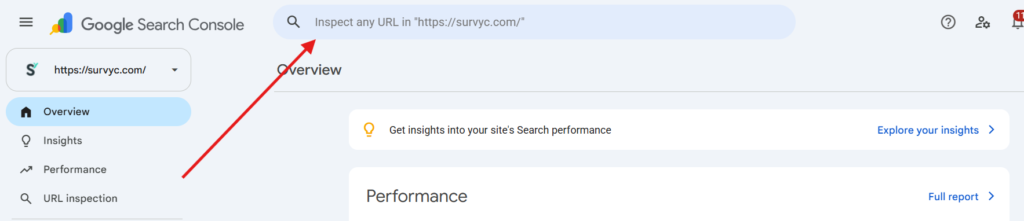
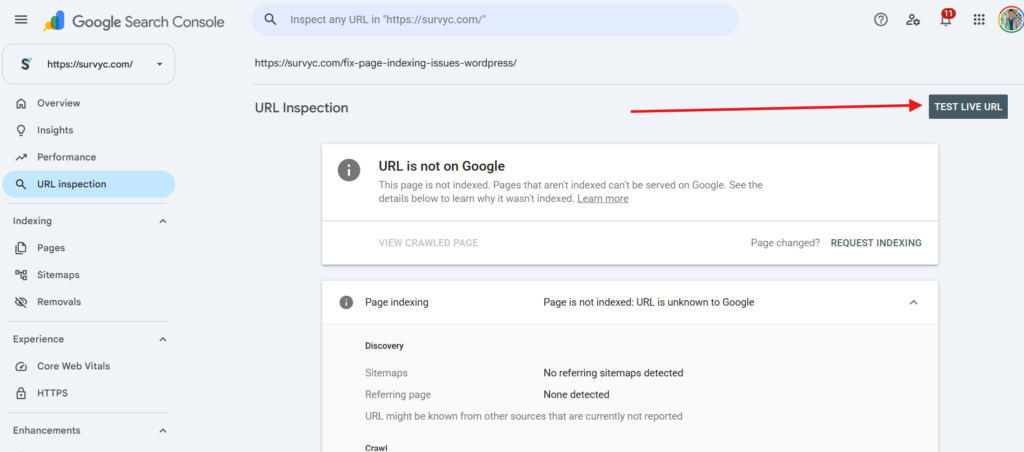
For a single URL, paste it into the search bar at the top of Search Console to run the URL Inspection tool. It tells you whether the page is indexed, which canonical Google picked, whether crawling is allowed, and what the last crawl found. Click “Test live URL” to see how the page looks to Google right now rather than at the last crawl, which matters when you have just fixed something.
Here is what each common status actually means and what to do about it:
| Search Console status | What it means | Where to fix it in WordPress |
|---|---|---|
| Excluded by ‘noindex’ tag | Something told Google not to index this page | Settings and SEO plugin (see Step 2) |
| Blocked by robots.txt | Googlebot was not allowed to crawl it | robots.txt (see Step 3) |
| Alternate page with proper canonical tag | Google indexed a different version instead | Canonical settings (see Step 4) |
| Duplicate without user-selected canonical | Google found near-identical pages and picked one | Content and canonicals (see Step 4) |
| Page with redirect | The URL redirects, so the target gets indexed | Normal, unless the redirect is wrong |
| Not found (404) | The URL does not exist | Restore the page or redirect it |
| Discovered, currently not indexed | Known but never crawled yet | Crawl capacity and site quality (see Step 6) |
| Crawled, currently not indexed | Read, then judged not worth indexing | Content quality (see Step 5) |
| Server error (5xx) | The server failed while Google was crawling | Hosting and error logs |
Work through the statuses that affect pages you care about, largest group first. The rest of this guide follows that order.
Step 2: Clear accidental noindex tags (the most common WordPress cause)
An accidental noindex tag is the single most frequent cause of WordPress pages vanishing from Google, and it hides in four different places. Check all four, because fixing one while another is still set changes nothing.
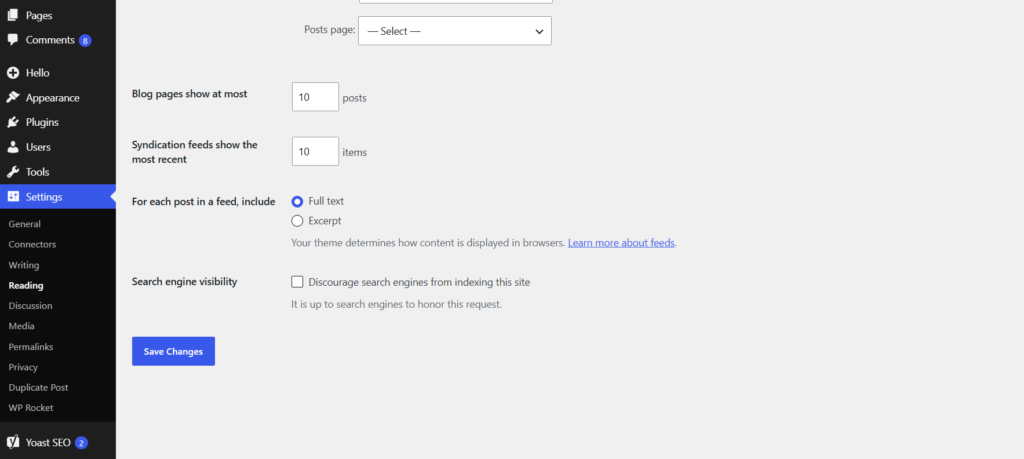
The WordPress checkbox. Go to Settings, then Reading, and look for “Search engine visibility.” If “Discourage search engines from indexing this site” is checked, your entire site is blocked. Uncheck it. This gets switched on during development and forgotten, which is exactly how a finished site sits invisible for weeks.
Your SEO plugin
Yoast, Rank Math and All in One SEO can each set noindex per page, per post type, or across whole sections. Check two levels: the individual page’s SEO settings (usually an “Advanced” tab with an option like “Allow search engines to show this page”), and the site-wide content type settings where posts, pages, categories, tags, author archives and custom post types each have their own toggle. A post type set to noindex silently blocks every page of that type.
Two SEO plugins at once
If you have Yoast and Rank Math both active, they can issue conflicting directives, and the stricter one usually wins. Pick one plugin as the single source of truth and deactivate the other properly rather than leaving it installed and idle.
A staging leftover
Development sites are normally set to noindex. When a site gets pushed from staging to production, that setting sometimes travels with it, either in the checkbox above, in the plugin, or in a theme or plugin file adding a meta robots tag. To confirm what your live page is actually sending, open the page, view its source, and search for “noindex”. If it is there and none of the settings above explain it, the tag is coming from code or from a caching layer (see Step 7).
Step 3: Check robots.txt, and avoid the block-plus-noindex trap

Your robots.txt file tells crawlers where they may go. If it disallows a path, Google will not crawl pages in that path at all. Visit yourdomain.com/robots.txt and read it. A line like Disallow: /blog/ blocks your entire blog, and broad rules like that get added during development or copied from a template without anyone checking what they cover.
Now the trap that catches even experienced people. If you block a URL in robots.txt, Google cannot crawl it, which means Google cannot see the noindex tag on it. So if a page is already in Google’s index and you want it out, blocking it in robots.txt is the wrong tool. It can stay indexed indefinitely, sometimes shown with no description, because Google knows the URL exists but is not allowed to fetch the instruction telling it to drop the page.
The rule is simple. Use robots.txt to save crawl capacity on pages you never want fetched. Use noindex to remove pages from search results, and leave those pages crawlable so Google can actually read the directive. Never use both on the same URL.
Step 4: Fix canonical and duplicate signals
When Search Console says “Alternate page with proper canonical tag” or “Duplicate without user-selected canonical,” Google found more than one URL serving similar content and indexed one of them. Often this is correct behaviour, and the version you care about is the one that got indexed. Sometimes it picked the wrong one.
Check the canonical with URL Inspection: it shows both the canonical you declared and the one Google selected. If they disagree, Google overruled you, usually because the pages look too similar or your internal links and sitemap point somewhere else. WordPress produces duplicate-looking URLs easily: with and without a trailing slash, http and https versions, www and non-www, URLs with tracking parameters, and paginated archive pages. Pick one format, make sure your internal links and sitemap use it consistently, and set canonicals to match.
A related WordPress quirk worth checking is attachment pages. WordPress can create a separate page for every uploaded image, each one thin and nearly empty. Most SEO plugins offer an option to redirect attachment URLs to the parent post or file. Turn it on, because hundreds of empty attachment pages both clutter the index and waste the crawl capacity your real pages need.
Step 5: Address the quality gap behind “Crawled, currently not indexed”
This status means Google fetched your page, read it, and decided not to index it. There is no technical error to fix. Google’s own explanation is deliberately vague, and industry testing points at the same conclusion: the page did not clear the bar Google uses to decide whether a URL is worth storing. As of 2026 this is the most common indexing status people ask about, because Google has grown noticeably more selective about what it keeps.
What usually triggers it: pages that are thin or mostly boilerplate, content that repeats what already ranks without adding anything, near-duplicates of your own other pages, auto-generated or lightly rewritten text, and archive pages that only list post titles. On new sites the whole domain is also still earning trust, so pages that would be indexed on an established site sit waiting on a new one.
The honest fix is not a technical trick. Improve the page until it answers its question better than what already exists, or consolidate several thin pages into one strong one and redirect the rest. Then add internal links to it from pages that are already indexed, because a page nobody links to looks unimportant to Google. Once you have genuinely improved the page, request indexing for it a single time and give it time to be reassessed.
One useful check before you rewrite anything: if the pages sitting in this status are tag archives, paginated URLs or thin category pages, the correct answer is to noindex them deliberately, not to improve them. Not every page deserves a place in the index.
Step 6: Handle “Discovered, currently not indexed”
This status means Google knows your URL exists but has not crawled it yet. Google’s stated reason is that fetching it might have overloaded your site, so the crawl got rescheduled. In practice that explanation only fits a slow or struggling site, and there is usually more to it.
Work through three things. First, check your server. In Search Console open Settings, then Crawl stats, and look at host status and average response time. If Google is reporting crawl problems, or your server responds slowly, fix that first, because crawl capacity depends on how quickly and reliably your site answers.
Second, look at how many low-value URLs your site exposes. WordPress generates tag archives, date archives, author pages, attachment pages and endless pagination by default. On a large site those can outnumber real content, and crawlers spend their limited attention on them instead of your pages. Noindex the ones with no purpose, remove them from your sitemap, and clean up empty or duplicate tags.
Third, check discoverability. Confirm the URLs appear in your XML sitemap, that the sitemap is submitted in Search Console, and that each page has internal links pointing to it from indexed pages. Orphan pages, reachable only through the sitemap, are the ones most likely to sit in this status for months.
Step 7: The cache layer nobody checks
This one causes real confusion, so it is worth its own step. Caching plugins and server-level caches store a finished copy of your page’s HTML. If a page was cached while it still carried a noindex tag, visitors and crawlers can keep receiving that old HTML long after you fixed the setting.
The symptom is distinctive: your WordPress settings look correct, but view-source on the live page still shows noindex, or URL Inspection still reports the page as excluded. The fix is to clear every cache layer you have, in order: your caching plugin, your host’s server cache, and your CDN, such as Cloudflare. Then run “Test live URL” in URL Inspection and confirm the tag is gone. Do this before concluding that a fix did not work, because a stale cache makes a correct fix look broken.
Step 8: Ask Google to look again, once
After the actual cause is fixed, tell Google. Open URL Inspection, paste the URL, and click Request Indexing. For a group of pages fixed in the same way, use the Validate Fix button on that status group in the Page Indexing report, which asks Google to recheck the whole set.
Two things not to do. Do not submit the same URL repeatedly. Requesting indexing five times does not move you up any queue, and the daily quota is limited. And do not request indexing before the underlying cause is fixed, because Google will simply reach the same conclusion again.
If you want faster notification for new and updated content, WordPress supports IndexNow, an open protocol that pings participating search engines the moment you publish. It works through the official IndexNow plugin or as a built-in feature of several SEO plugins. Be clear about what it does though: it speeds up discovery, not indexing. Each search engine still decides for itself whether your page deserves to be indexed, so IndexNow shortens the wait for good pages and does nothing at all for pages with a quality or technical problem.
How long does indexing take after a fix?
Expect days to a few weeks, not hours. After you request indexing, a fixed page is often reindexed within a few days, and sometimes within hours on a site Google crawls frequently. Validation of a whole status group takes longer, typically one to two weeks, because Google rechecks a sample and then works through the rest. New sites and low-traffic sites wait longer than established ones.
Two habits make the wait manageable. Fix one cause at a time so you can tell what worked, and note the date you requested indexing so you are measuring from a real starting point rather than a vague memory. If a page is still excluded three to four weeks after a confirmed technical fix, treat it as a quality signal rather than a lingering technical fault, and go back to Step 5.
Conclusion
Page indexing problems in WordPress look mysterious until you read the status Google already assigned to your URL, which turns guessing into a specific fix. Check noindex in all four places it hides, especially the Settings and Reading checkbox and your SEO plugin’s content type toggles. Never block a page in robots.txt and expect a noindex on it to work, because Google cannot read an instruction it is not allowed to fetch.
Confirm canonicals match what you intend, redirect attachment pages, and noindex the tag and date archives that dilute your site. When Google says “Crawled, currently not indexed,” the answer is a better page and more internal links, not another submission. Clear every cache layer before you decide a fix failed. Then request indexing once and give it a few weeks.
Frequently Asked Questions
Why is my WordPress page not showing on Google?
The most common causes are an accidental noindex tag, a robots.txt block, a canonical pointing to another URL, or content Google crawled and judged not worth indexing. Open the Page Indexing report in Google Search Console and read the status assigned to that URL, which names the cause directly.
What does “Crawled, currently not indexed” mean in WordPress?
It means Google fetched and read your page, then chose not to add it to the index. There is no technical error. It usually signals thin, duplicated or low-value content, an archive page, or a new site still earning trust. The fix is a stronger page plus internal links from indexed pages.
How do I check if my WordPress site is blocking Google?
Check three places: Settings then Reading for the “Discourage search engines” checkbox, your robots.txt file at yourdomain.com/robots.txt, and your page source for the word “noindex”. Then run the URL Inspection tool in Search Console, which reports whether crawling and indexing are allowed for that URL.
Should I use robots.txt or noindex to remove a page from Google?
Use noindex, and keep the page crawlable. If you block a URL in robots.txt, Google cannot fetch it and therefore cannot see the noindex directive, so the page can stay indexed. Use robots.txt only to stop crawling of pages you never want fetched at all.
How long does it take Google to index a WordPress page?
Usually a few days to a few weeks. After you fix the cause and request indexing, many pages are reindexed within days, while validating a whole group of URLs typically takes one to two weeks. New sites and sites Google crawls less often wait longer.
Does requesting indexing repeatedly help?
No. Submitting the same URL again does not improve its position in any queue, and daily requests are limited. Request indexing once after the underlying cause is fixed. If nothing changes in three to four weeks, the issue is more likely content quality than a technical block.
