

If your WordPress site is hacked, here is what to do: take it offline, preserve a full snapshot as evidence, rotate every credential and end all sessions, and bring in your host. Then clean it in order: restore a clean backup or remove the malware by hand, replace the core files, and close the entry point before you go live.
Hacked-site calls follow the same pattern. The damage from the hack itself is usually recoverable. The damage from the first panicked hour often is not.
I have watched site owners delete the files that showed how the attacker got in, restore a backup that was itself infected, and change the admin password while the attacker sat in an open session, still logged in. Every one of those mistakes happens before any real cleanup starts.
So this guide runs in the order the work actually happens: the first 60 minutes as a clock, because a panicking person can follow a clock, then the cleanup, then the core-file replacement, then the step almost everyone skips. If you are not yet sure the site is compromised, start with the signs your WordPress site is hacked and come back.
What this guide coversWhat is the one rule when your WordPress site is hacked?
Preserve evidence before you delete or overwrite anything. Unfamiliar files, spam pages, modified configuration files and suspicious admin accounts are the only record of when the compromise started, what the attacker changed, and how they got in. Document them and capture a complete snapshot first.
Once the evidence is safe, containment continues: unauthorised accounts get disabled, sessions get invalidated, credentials get rotated. The malicious code itself is removed later, during cleanup.
Preserve first. Contain second. Clean third. Every failed recovery I have picked up broke that order somewhere in the first hour.
What should you do in the first hour after a WordPress hack?
Work through the hour in five blocks: stop the bleeding, preserve the evidence, lock every door, bring in your host, then assess the damage. The order matters more than the speed. Each block below says what to do and why it sits where it does.
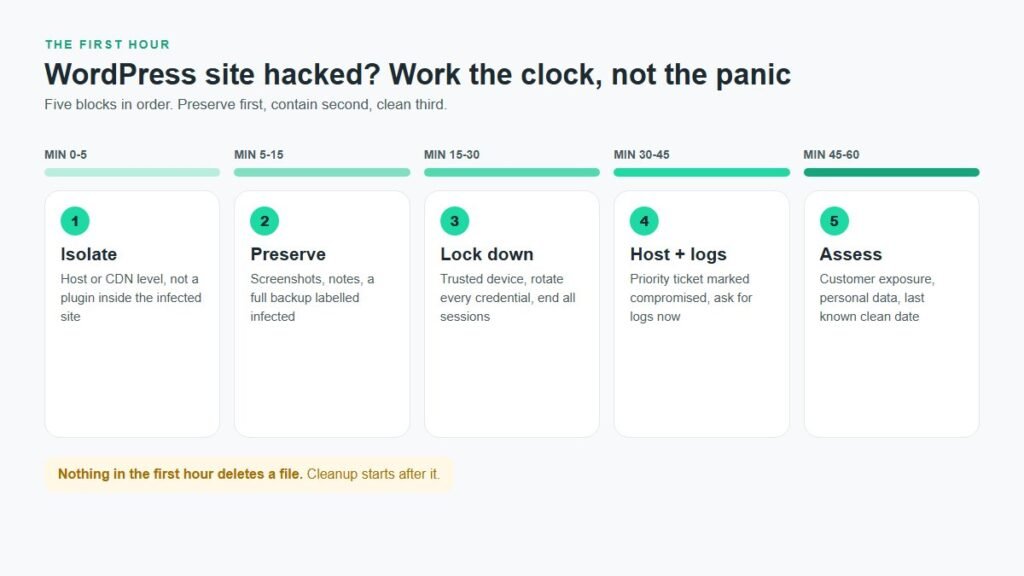
Minutes 0 to 5: isolate the site
Stop visitors interacting with a site that may be serving malicious code, redirects, phishing pages or compromised forms. Isolate it at the host, server, CDN or firewall level rather than relying on a maintenance-mode plugin running inside the infected WordPress. Ask your host to suspend public access while keeping the access you need to investigate.
For a business-critical site, serve a clean static maintenance page from your host or CDN while the compromised application stays isolated. Do not rely on a blank .maintenance file in the WordPress root; WordPress uses it during updates, and it is not a containment mechanism.
Minutes 5 to 15: preserve the evidence
Screenshot the defacement, the redirect, the Google warning, and the spam pages. Write down who found the problem, when, what the symptoms were, and anything anyone has already done.
Then take a complete backup of the site exactly as it is, files and database both, and label it as infected. That copy is forensic evidence, not a restore point, and it must never go back on a live server. If your host can take a server-side snapshot, ask for one now; it captures details a plugin backup misses. My WordPress backup guide explains the difference.
Minutes 15 to 30: lock down every account
Start with the device. If the compromise came from stolen credentials, typing new passwords on an infected computer hands them straight over. Scan the machine you manage the site from, or switch to another trusted computer and network. Secure the email account tied to your host and admin logins too, because whoever controls that inbox can reset everything you are about to change.
From the trusted device, rotate credentials for the hosting control panel, every WordPress administrator, SFTP and FTP, SSH, and the admin email accounts used for password recovery. If API keys, payment credentials, CRM tokens or SMTP passwords may have been exposed, revoke them at the provider, but do not paste the new secrets into a WordPress install that has not been cleaned yet.
Changing passwords does not log out an attacker who is already in. End the sessions explicitly. With WP-CLI, one command clears a user's sessions, and shuffling the salts in wp-config.php invalidates every login cookie on the site:
Success: Shuffled the salt keys.
While you are there, check for persistence: admin users you did not create, and extra SFTP, FTP or SSH accounts in the hosting panel. A second account is not automatically malicious, since agencies and deploy tools often have their own. Document each one, confirm who owns it, and revoke anything nobody can identify. Database credentials need care, because changing them without updating wp-config.php breaks the site, so coordinate that one with your host.
Minutes 30 to 45: bring in your host and get the logs
Open a priority ticket and put the word "compromised" in the subject line. Your host holds logs you cannot get inside WordPress. Ask them to preserve and share web access logs, server error logs, control-panel and authentication logs, firewall events, SFTP and SSH access records, and outbound mail logs, covering the days before and after the first symptom.
Ask quickly, because retention windows vary between hosts. Logs rarely reveal the entry point on their own, but combined with file timestamps and admin activity they usually narrow the compromise window. If your host cannot produce logs or an incident process at all, note it. That belongs in your hosting decision after recovery.
Minutes 45 to 60: assess the damage and find your last clean date
Spend the last quarter of the hour on assessment, not action. Three questions decide what happens next. What could visitors still do before you went offline: buy, book, submit a form, log in? Was payment or personal data involved? And when was the site last known clean?
That last date is a starting point, not proof. Attackers often hold quiet access for a while before the first visible redirect or warning, so a backup from the day before the symptoms can still carry a backdoor. Finally, open the Security Issues report in Search Console, see whether Google has flagged the site, and screenshot it.
What should you not do in the first hour?
Five mistakes account for most failed recoveries, and all five happen early. Each one feels productive in the moment. Each one either destroys evidence, leaves the attacker a way back in, or extends how long the warning stays on your site.
Panic-deleting files
The strange files are how you find the way in. Delete them now and the same route stays open.
Cleaning the visible malware only
The redirect you can see is rarely the whole infection. Backdoors are built to survive a surface cleanup.
Restoring a backup before you know your clean date
Restore an infected backup and you have restarted the incident with extra confidence.
Resetting only the WordPress password
Hosting, SFTP, SSH, database and email credentials all stay live, and so do existing sessions.
Asking Google for a review too early
A rejected review adds delay, and repeated requests can get the site treated as a repeat offender.
How do you remove malware from a hacked WordPress site?
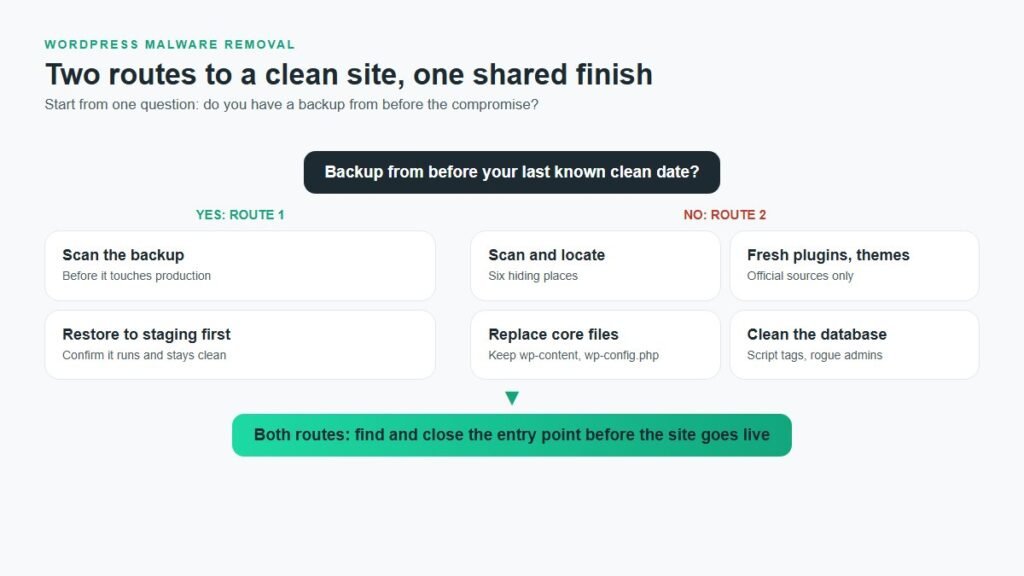
WordPress malware removal has two routes. If you have a backup from before the compromise, restore it into a clean environment and then close the entry point. If you do not, clean by hand: scan, locate the infection, replace core files, reinstall plugins and themes from official sources, and clean the database.
The context is worth knowing. Patchstack's State of WordPress Security in 2026 recorded 11,334 new vulnerabilities in the WordPress ecosystem in 2025, a 42% rise on 2024. 91% were in plugins and 9% in themes, with only six in WordPress core, and the median time to mass exploitation for heavily exploited flaws was 5 hours. Getting hacked is common, and the vast majority of sites are recoverable.
Route 1: restore a backup from before the compromise
A clean backup is the single biggest factor in how fast you get back online. Pick a restore point from before your last known clean date, scan it before it touches production, and restore it to staging first. If the restore itself fails, my guide to a WordPress backup restore that failed covers the usual causes. Then go straight to the entry point section below, or the same hole gets used again.
Route 2: scan and locate the infection
Start with a scanner, then verify by hand, because scanners catch most but not all modern malware. A security plugin can scan files and compare core against the originals, and an external check such as Sucuri SiteCheck shows what a visitor sees. Remember that many infections use cloaking: clean content for you and for Google, redirects for real visitors. That is why the first sign is often a customer complaint, or something like a fake reCAPTCHA screen.
Then check the places malware hides most often:
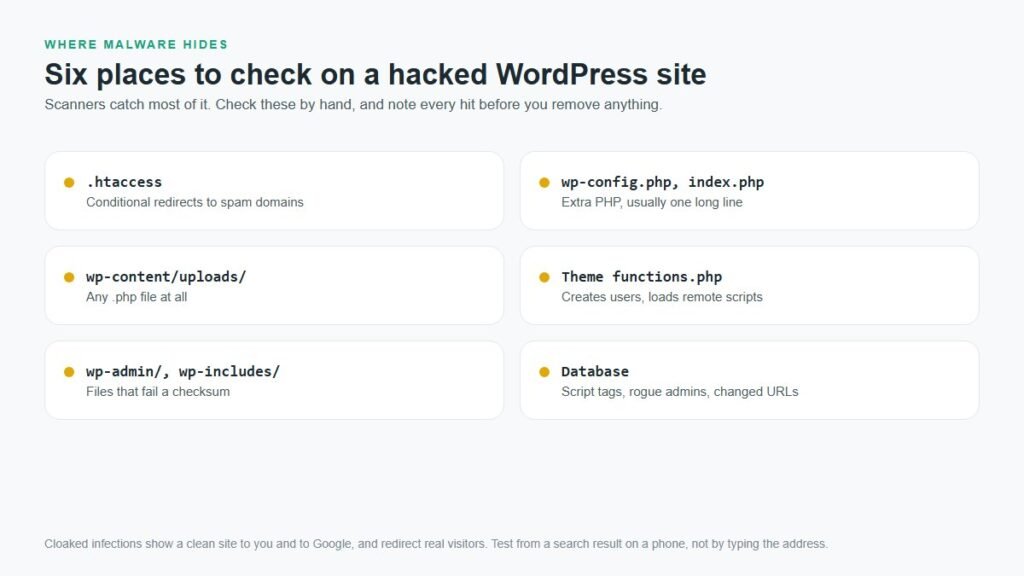
The most common thing I find in .htaccess is a conditional redirect. It sends visitors who arrive from a search engine to a spam domain, while you, typing the address directly, see a normal site:
RewriteCond %{HTTP_REFERER} (google|bing|yahoo) [NC]
RewriteCond %{HTTP_USER_AGENT} (android|iphone|mobile) [NC]
RewriteRule ^(.*)$ https://spam-domain.example/ [R=302,L]
In PHP files, injected code usually looks like a script or iframe pointing to an unknown domain, or a single very long line that decodes and runs a hidden payload. Legitimate plugins almost never write code like that.
Clean the plugins, themes and database
Replace rather than edit. Delete every plugin and theme folder and reinstall clean copies from the official source; remove anything you do not recognise or no longer use. Never reinstall a nulled "premium" plugin, since those are a common way malware gets in.
In the database, remove injected script tags and any admin users you did not create, and export a fresh backup before every edit. Replace .htaccess with a default version and re-save your permalinks. Core files come next, and they get their own section because it is the part people are most nervous about.
How do you replace WordPress core files without losing data?
Keep wp-content and wp-config.php, delete everything else in the WordPress root, and upload a fresh copy of WordPress without its own wp-content folder. Your posts and settings live in the database, and your themes, plugins and images live in wp-content, so none of them are touched.
Think of core files as the engine. wp-content is the paint and the seats, and wp-config.php is the key that connects the car to your database. Swap the engine and the car drives exactly as it did. Core replacement fixes injected core files, and it also fixes corrupted files after a failed update, a common cause of the white screen of death.
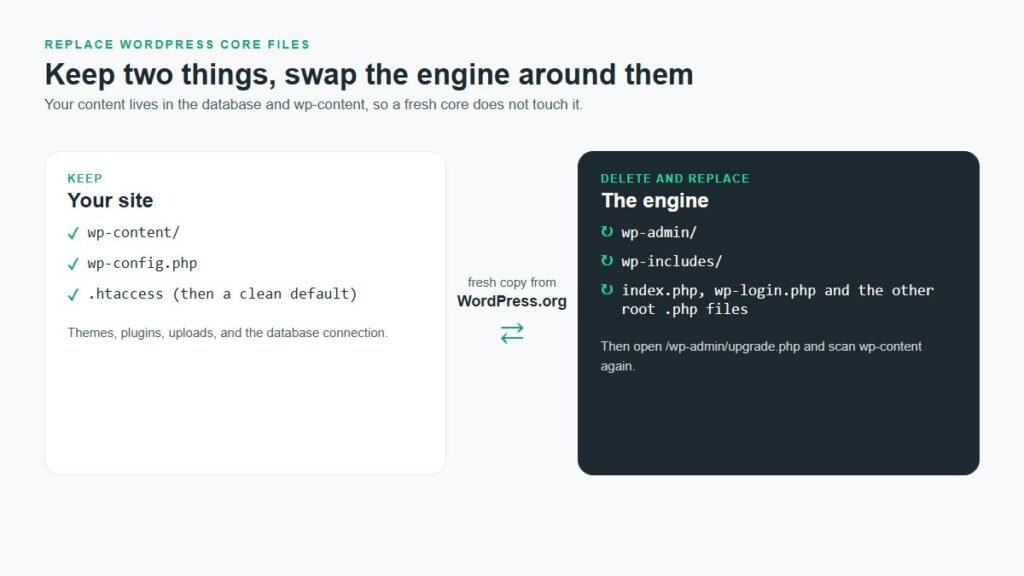
Download the latest version from WordPress.org and unzip it on your computer.
Delete the wp-content folder and wp-config-sample.php from the fresh copy, so nothing overwrites your site.
In your host's file manager or SFTP, delete wp-admin, wp-includes, and every loose .php file in the root except wp-config.php.
Upload the fresh files. wp-config.php connects the new engine to your existing database straight away.
Visit yoursite.com/wp-admin/upgrade.php. If WordPress needs a database update to match the new files, run it.
With command-line access, WP-CLI does the same job in one step, and verify-checksums tells you whether core matches the official release. Run before the replacement, the same command is a quick way to list modified or extra core files:
Warning: File should not exist: wp-includes/css/class-wp-cache.php
Error: WordPress installation doesn't verify against checksums.
Success: WordPress installation verifies against checksums.
A fresh core does not clean wp-content, which is where most infections actually live, so scan it again once the site is back up. If you want to understand why a core file could be edited in the first place, my guide to protecting WordPress files covers file permissions and editing locks.
How do you find the entry point so the hack does not come back?
Match the first infected file's timestamp against your host logs and plugin update history. Cleaning the malware without closing the way in is the main cause of reinfection. Attackers plant backdoors and uploader scripts precisely so they can come back after a basic cleanup, often within days.
Given where vulnerabilities actually sit, start with plugins. An outdated or abandoned plugin is the usual suspect, followed by nulled plugins and themes, reused or weak passwords, a compromised developer machine, and an outdated PHP version. The logs you asked your host for in minute 30 are what connect a file timestamp to a request.
Until you can name the entry point, or have at least removed every plausible candidate, treat the site as not clean. If the malware comes back after cleanup, that is the signal: a backdoor or a vulnerable component is still there.
One hand-off symptom worth knowing: if the site starts returning 403 errors, white screens or other failures after cleanup, investigate them rather than assuming they are harmless. They can come from residual malicious rules, incomplete file replacement, permissions, or changes made during the cleanup itself.
What if Google flagged your site as hacked?
If Google shows "This site may be hacked" or a red warning screen, you have a business problem running alongside the technical one. Confirm the flag in Search Console's Security Issues report and screenshot what Google found before changing anything. If the property is not verified, verify it now; you cannot request a review without it.
Then hold two lines. Request the review only after the whole site is clean and the entry point is closed, because a rejected review wastes days. And request it once. Google says reviews take from a few days to a few weeks, and warns that asking before the problem is fixed can lengthen later reviews and get the site treated as a repeat offender.
Some hosts claim flags lift within a day or two, but that comes from commercial sources, not Google, so do not plan around it. If rankings dropped while the flag was up, my guide to fixing page indexing issues covers the recovery side.
Do you need to tell customers about a WordPress hack?
Not automatically. A hacked website does not always mean customer data was breached. Your first job is to establish what the attacker could reach, whether personal data was actually or potentially exposed, and which laws apply to you and your customers.
Under UK GDPR, a reportable personal data breach generally has to be reported to the ICO without undue delay and, where feasible, within 72 hours of becoming aware of it, and individuals must be told if the risk to them is high. In the US, requirements vary by state, industry and the type of data. This is not legal advice; if customer, payment, health or identity data may be involved, bring in privacy or legal help early.
Your host may not be the only party that needs to know. Check for cyber-insurance requirements, since some policies require notice or an approved responder before you spend on remediation. Also check payment-provider security obligations, contractual breach clauses, and any IT or managed service provider. Keep a written incident record even if you conclude no external notice is needed.
How do you recover and stop it happening again?
Once the site is clean and the entry point is closed, update WordPress core, every theme and every plugin, then rotate all critical credentials a second time, which WordPress's own hacked-site guidance also recommends. Review user accounts once more, and watch the site closely for the next two to four weeks, because a missed backdoor usually shows itself quickly.
Prevention is a short list, and it is far cheaper than recovery:
Update quickly, or automatically. With mass exploitation arriving within hours of disclosure, a weekly update habit is already slow for high-risk plugins.
Remove what you do not use. Every inactive plugin and theme is still code an attacker can reach.
Never install nulled plugins or themes. Pirated "premium" code is a common way malware gets in.
Strong, unique passwords and two-factor authentication on every administrator account.
Harden the basics. A firewall, locked file editing and sensible permissions, covered in my guide on how to secure a WordPress site.
Automated daily backups stored off the server, so the next incident is a restore, not a rebuild.
Should you clean it yourself or hand it off?
A simple infection with a clean backup is often a job you can do yourself with the steps above. Hand it off when there is no clean backup, when the malware returns after you clean it, when the infection reaches the database or core, or when the site is a business losing revenue and trust every hour. Modern malware that embeds in legitimate files is hard to remove fully by hand, and a botched cleanup often costs more than doing it once properly.
Key takeaways
If your WordPress site is hacked, the first hour decides whether recovery is a clean hand-over or a repeating problem. Isolate the site, preserve a full snapshot before touching anything, rotate every credential from a trusted device, end all sessions, get your host and their logs involved, and pin down your last known clean date. Delete nothing yet.
Then clean in order. Restore a backup from before the compromise, or scan and clean by hand: the six common hiding places, fresh plugins and themes from official sources, a cleaned database, and fresh core files with wp-content and wp-config.php kept. Core replacement does not touch your content.
The site is not clean until the entry point is closed, most often an outdated plugin. Request a Google review once, only after that. Check your notification duties if personal data was involved, then keep updates, backups and two-factor authentication running so the next incident is a restore, not a rebuild.
Frequently asked questions
What should I do first if my WordPress site is hacked?
Take the site offline first, ideally through a host-level suspension or a static maintenance page. That stops visitors being exposed while you work. Then preserve a full snapshot of the infected site, rotate every credential from a trusted device, end all active sessions, and open a priority ticket with your host.
Should I delete the hacked files immediately?
No. Deleting files in the first hour destroys the evidence of how the attacker got in, which means the same route stays open for a repeat attack. Preserve a complete snapshot of the infected site first. Deletion belongs to the cleanup stage, after you understand the incident.
Can I just restore a backup?
Only once you know when the site was last clean. Many backups were taken after the initial breach, so restoring one puts the malware straight back. Pick a backup from before that date, scan it, restore it to staging first, and close the vulnerability that let the attacker in.
Can I remove WordPress malware myself?
Often, yes, especially with a clean backup from before the compromise. Manual cleanup is possible too: scan, replace core files, reinstall plugins and themes from official sources, and clean the database. Infections with hidden backdoors are hard to remove fully by hand, so hand those off.
Will replacing WordPress core files delete my content?
No. Your posts, pages and settings live in the database, and your themes, plugins and images live in the wp-content folder. Core replacement keeps wp-content and wp-config.php and swaps only wp-admin, wp-includes and the root PHP files, so your content and design stay exactly as they were.
Why does my WordPress site keep getting reinfected?
Reinfection almost always means the original entry point was never closed. Attackers plant backdoors that survive a basic cleanup and let them return. If malware comes back after you clean it, a backdoor or a vulnerable plugin is still present, and the site needs a deeper cleanup.
How long does Google take to remove the hacked warning?
Google says a security review can take from a few days to a few weeks. Submit the request only after every reported issue is fixed across the site, then wait for the decision before submitting another. Avoid relying on unofficial promises of 24- or 48-hour removal times.
Do I have to tell my customers if my site was hacked?
Not automatically. It depends on whether personal data was exposed and which laws apply. Under UK GDPR, a reportable breach generally goes to the ICO within 72 hours, and individuals are told if the risk is high. US rules vary by state, so get legal advice if customer data may be involved.
Hacked right now? We can take it from here.
If a site you run, or a client's site, just went down with a warning screen, the first hour is exactly when a second pair of experienced hands pays off. Survyc handles hacked-site response and WordPress malware removal: containment, cleanup, closing the entry point, and the Google review, directly for site owners or white label for agencies, including sites an agency has just inherited through our white label website takeover.
We also run WordPress care plans and ongoing maintenance that catch the next incident in minutes instead of weeks. Tell us what happened, or email info@survyc.com. Send the screenshots too; you preserved them for a reason.
Get help with a hacked siteLast reviewed: September 2026. Attack patterns and the Google review process change often, so this guide is reviewed every quarter.
