

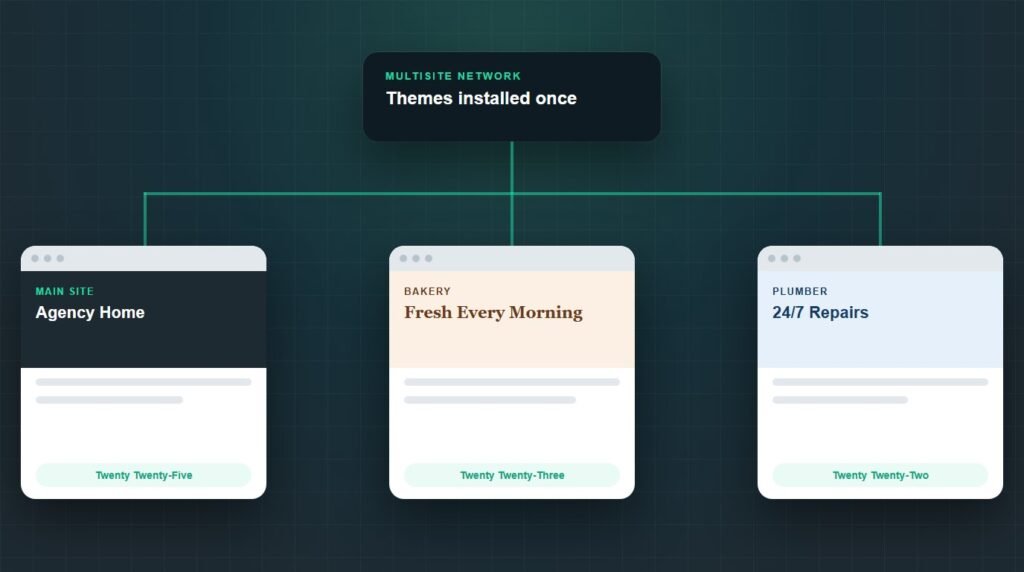
WordPress Multisite supports multiple themes. Every site in the network can run a different theme at the same time, chosen from the themes the network administrator has installed and enabled. Themes are installed once for the whole network, but each site keeps its own active theme, customizations, and settings.
I set up a three-site Multisite network on WordPress 7.1.2 to check this directly rather than repeat what other guides say. The main site, a bakery site, and a plumber site ended up running three different themes at once.
The screenshots below come from that test network. They show the three settings that decide which themes a site can use, and the one setting that stays separate for every site.
How do themes work in WordPress Multisite?
In WordPress Multisite, a theme moves through three states. It is installed once for the network, then enabled for every site or for chosen sites, and finally activated by each site on its own. Only the last step belongs to the individual site.
This is how my test network ended up after I enabled and activated themes:
How to make a theme available to every site
Go to My Sites, Network Admin, Themes, and click Network Enable under the theme. WordPress describes this screen as the place that "allows you to control which themes site administrators can use for each site", according to its Network Admin documentation.
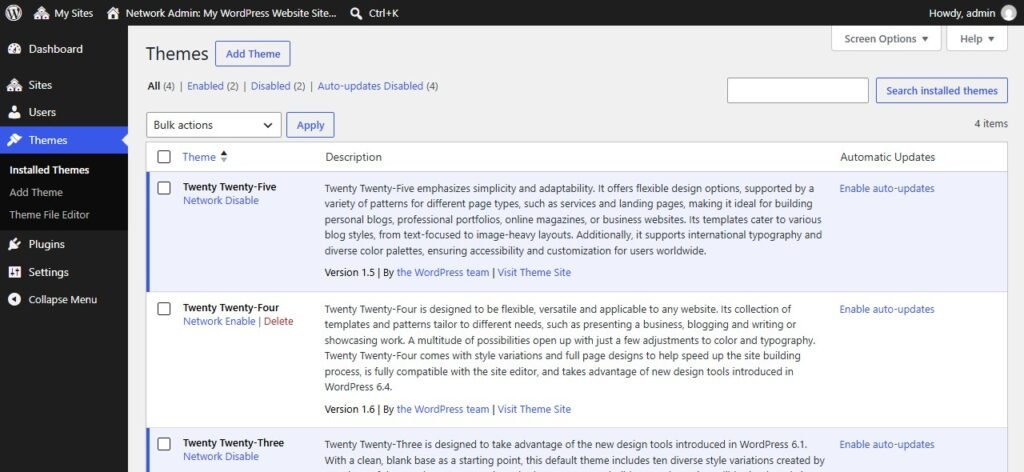
In my test, the theme that was active when the network was created, Twenty Twenty-Five, was already network enabled. New themes you install start as installed only, so nothing changes on existing sites until you enable them.
From the command line, WP-CLI does the same in one line:
How to enable a theme for one site only
Go to Network Admin, Sites, hover over the site, and click Edit. Open the Themes tab and click Enable under the theme. That site can now choose it, and no other site sees it.
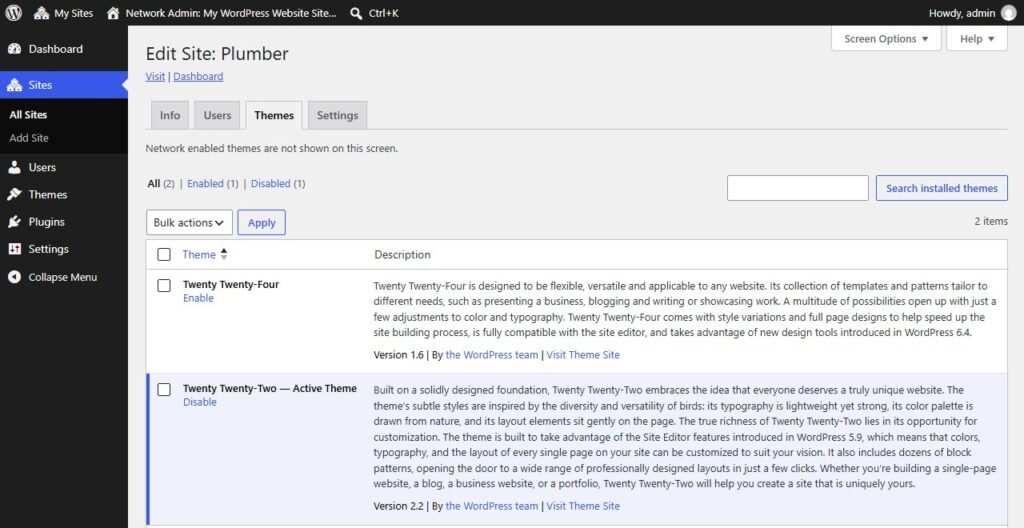
This tab hides network-enabled themes, which confuses people the first time. The screen only lists themes you could enable for this one site, so an empty list usually means every theme is already network enabled.
How each site chooses its own theme
Each site's administrator opens Appearance, Themes on their own dashboard and activates any theme that has been enabled for them. They cannot install themes, and the Add New button is missing from this screen on every site in the network.
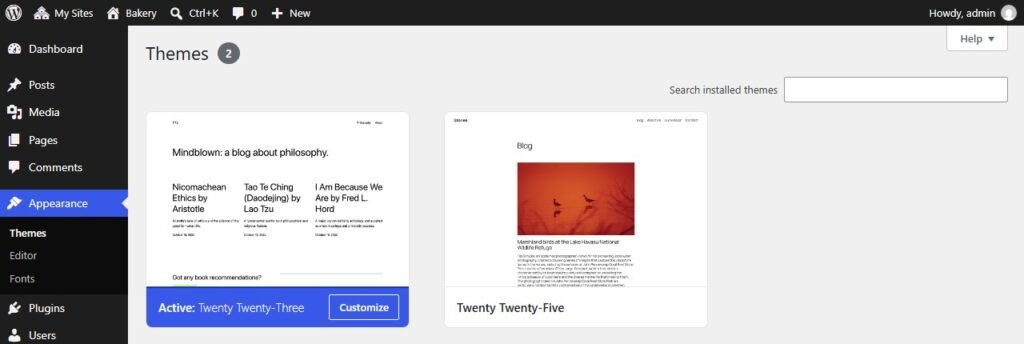
As network admin, you can also switch a site's theme for it from the command line:
Do Multisite sites share theme settings?
No. The theme files are shared, but everything a site does with the theme is stored in that site's own database tables. Changing colors, menus, or templates on one site leaves every other site alone, even when they use the same theme.
I tested this by setting a background color on the Bakery site through its theme settings. Checking every site afterwards, only Bakery had the new value; the main site and the Plumber site still had none.
Block themes work the same way. Edits made in the Site Editor, including global styles and template changes, are saved as content in each site's database, so two sites on Twenty Twenty-Five can look nothing alike.
The files are the exception. Editing a theme's PHP or CSS files changes them for every site that uses that theme, which is why site-specific code belongs in a child theme or a plugin rather than in the shared theme.
What to watch out for with Multisite themes
Sharing one copy of each theme saves disk space and update time, and it also means one mistake reaches every site at once.
A theme update reaches every site that uses it
Update a theme once and every site running it gets the new version immediately. Test updates on a staging copy of the network first, especially for themes with custom templates.
Deleting a theme can take sites offline
In my test, the network Themes screen still offered Delete for Twenty Twenty-Two while it was the active theme on the Plumber site. Check which sites use a theme before removing it; here is what to do if a deleted theme stops a site loading.
Site admins cannot install themes
Only the network admin can add themes. On an agency or client network, that is usually what you want, but it means every theme request goes through one person.
Child themes need their parent installed
A child theme only works if its parent theme is installed on the network. Enable the child theme for the sites that should use it, and keep site-specific changes there rather than in the parent.
Take a backup of the whole network before bulk changes; our WordPress backup guide covers what a restorable backup includes. On a network, ongoing WordPress maintenance matters more than on a single site, because one untested update can reach every site at once.
Should your network use one theme or many?
Multisite allows many themes, but that does not mean you should enable many. The right number depends on who runs the sites.
In practice, fewer enabled themes means fewer updates to test and fewer ways for one site to break the rest.
Key takeaways
Is WordPress Multisite one theme or multiple? Multiple. Themes are installed once for the network, the network admin enables them for every site or for chosen sites, and each site activates its own. In my test, three sites ran three different themes at the same time.
Customizations stay separate per site, but theme files are shared. Keep the number of enabled themes small, test updates on staging, and check which sites use a theme before you delete it.
Frequently asked questions
Can each site in WordPress Multisite have a different theme?
Yes. Each site activates its own theme from the themes the network administrator has enabled for it. In a three-site test network on WordPress 7.1.2, the main site, a bakery site, and a plumber site each ran a different theme at the same time, with no conflict between them.
Who can install themes on a Multisite network?
Only the network administrator, also called the super admin, can install or delete themes on a Multisite network. Individual site administrators can only activate themes that have been enabled for their site, and the Add New button does not appear on their Themes screen.
What is the difference between Network Enable and activating a theme?
Network Enable makes a theme available for every site to choose; it does not change any site's appearance. Activating is what each site does afterwards to actually use a theme. A theme can be network enabled and still not be active on any site.
Do Multisite sites share theme customizations?
No. Colors, menus, widgets, and Site Editor changes are stored in each site's own database tables, so customizing a theme on one site leaves other sites untouched. Only the theme files are shared, which means editing those files affects every site that uses the theme.
How do I enable a theme for only one site in Multisite?
Go to Network Admin, Sites, and click Edit under the site. Open the Themes tab and click Enable under the theme. Only that site can then choose it. With WP-CLI, run wp theme enable followed by the theme and the site's --url.
What happens to other sites when I update a theme on Multisite?
Every site using that theme gets the update immediately, because all sites share one copy of the theme files. Their customizations stay in place, since those are stored per site, but a bug in the update reaches every site, so test updates on staging first.
Running a Multisite network for clients?
Survyc is an AI-first digital agency. We maintain WordPress Multisite networks, test theme and plugin updates on staging before they reach every site, and set up child themes so site-specific changes never touch the shared theme. Our maintenance plans cover networks as well as single sites.
Agencies can hand us the work white label. Whether your WordPress Multisite uses one theme or multiple, send us the network URL or email info@survyc.com, and we will tell you what to tidy up first.
Talk to usLast reviewed: September 2026. Tested on a three-site Multisite network running WordPress 7.1.2. Admin screens change between versions, so this guide is reviewed every quarter.
