

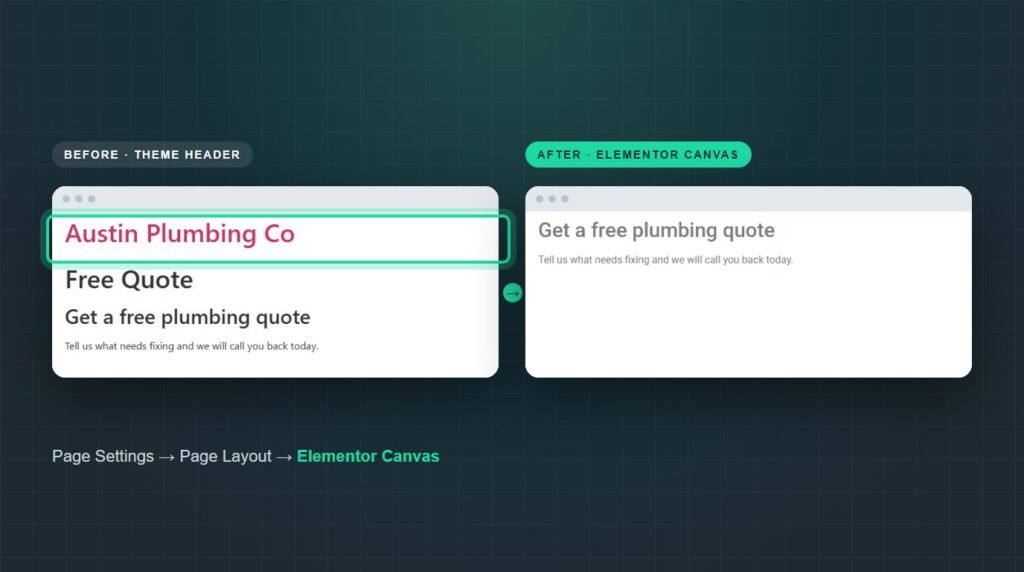
To hide the header on an Elementor page in WordPress, open the page in Elementor, click the Page Settings icon in the top bar, and set Page Layout to Elementor Canvas. That removes the header and footer from that page only. To hide just the header and keep the footer, use one line of CSS instead.
I tested every method below on a fresh WordPress site running Elementor 4.3.2 and the Hello Elementor theme 3.5.1, and took the screenshots as I went. The same steps work with most themes; only the CSS method needs a small change for yours.
Pick the method by what you want gone: the header and footer on one page, only the header on one page, or the header everywhere.
Which method do you need?How to hide the header on one page with Elementor Canvas
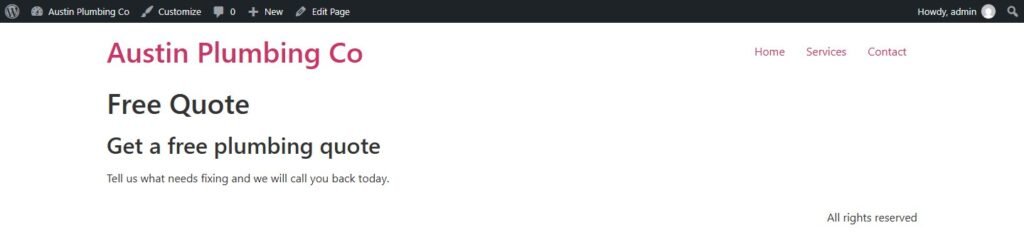
Elementor Canvas is a page layout that loads your page with no theme header, footer, or sidebar. It is built into free Elementor, and Elementor describes it as a layout that "removes the site's header, footer, and sidebars". This is how the test page looked before the change:
Open Page Settings
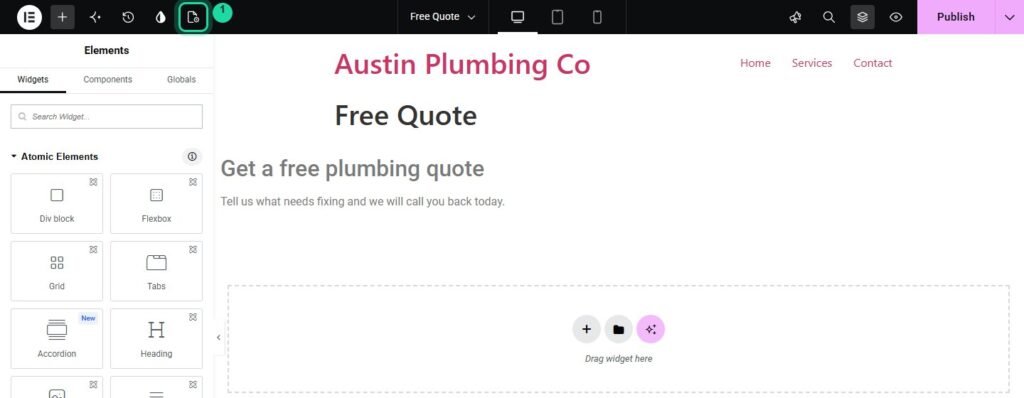
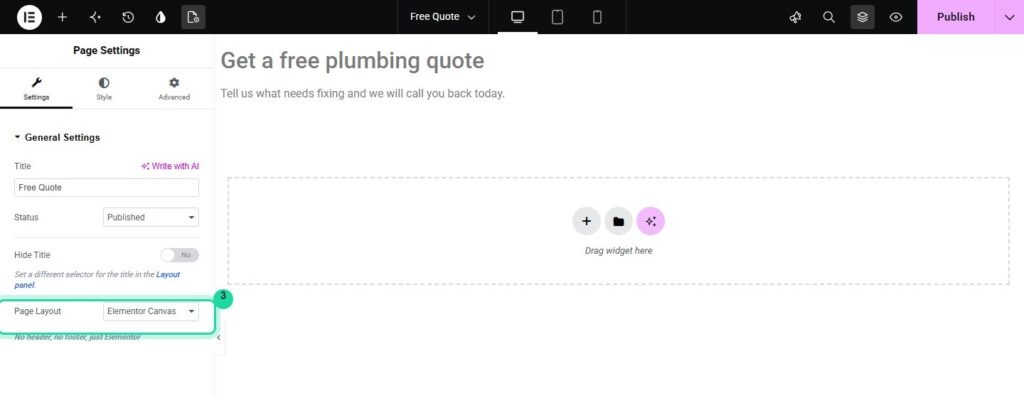
Open the page with Edit with Elementor. In the top bar, click the Page Settings icon, the page with a small gear, next to the History and Design System icons.
Find the Page Layout setting
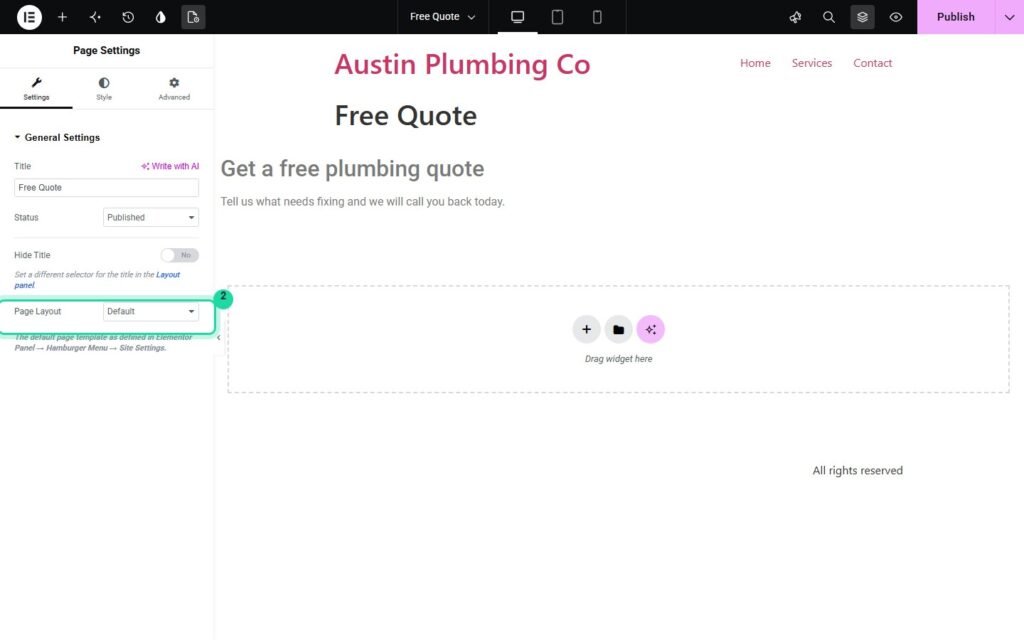
Scroll to the bottom of the Settings tab. Page Layout is set to Default, which means your theme's normal header and footer. Note the Hide Title toggle just above it: that only hides the page title, not the header.
Choose Elementor Canvas
Open the dropdown and pick Elementor Canvas. The preview reloads without the header, and the help text under the setting confirms it: "No header, no footer, just Elementor".
Publish and check the live page
Click Publish (or Update), then open the page in a private window. The header and footer are gone on this page only; every other page keeps them.
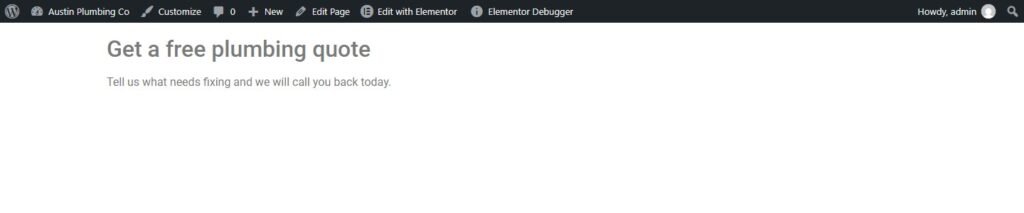
Canvas also removes the page title, so add your own heading in Elementor. If you want the page to go edge to edge but keep the header, choose Elementor Full Width instead. Canvas is the usual choice for landing pages, where a menu gives visitors a way to leave before they convert; our checklist for a website that is not generating leads explains why that matters.
How to hide only the header and keep the footer
Canvas removes both the header and the footer. To hide only the header on one page, target that page's ID with CSS. WordPress adds a class like page-id-5 to every page, so the rule never touches other pages.
Find the page ID
In Pages, hover over the page title and look at the link in your browser's status bar: the number after post= is the ID. My test About page was ID 5.
Add the CSS in the Customizer
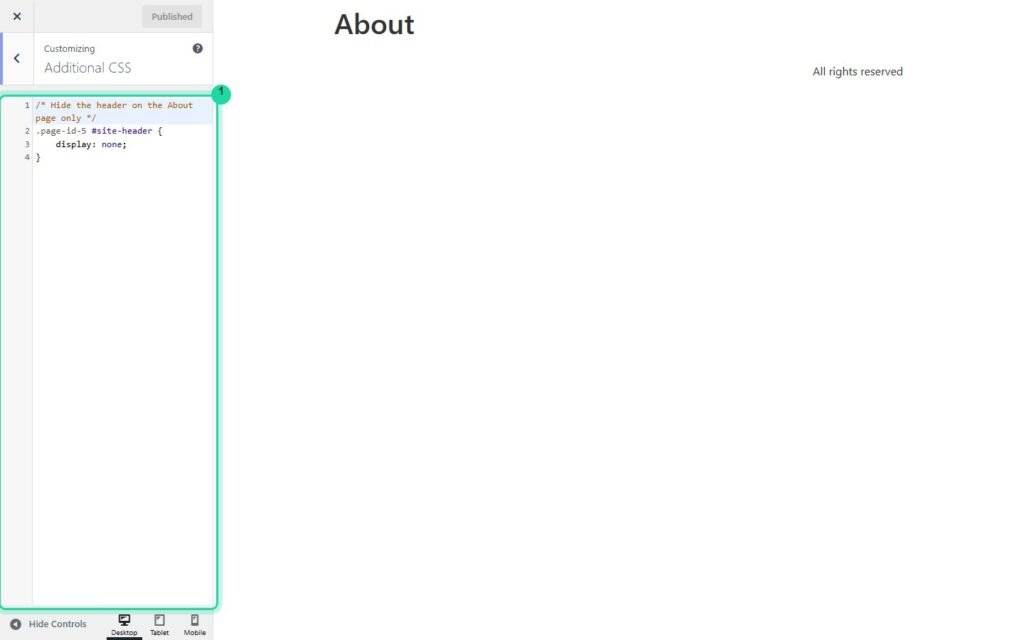
Go to Appearance, Customize, Additional CSS, and paste the rule with your own page ID. The preview on the right updates as you type, so you can confirm it before publishing.
.page-id-5 #site-header {
display: none;
}
Publish and check
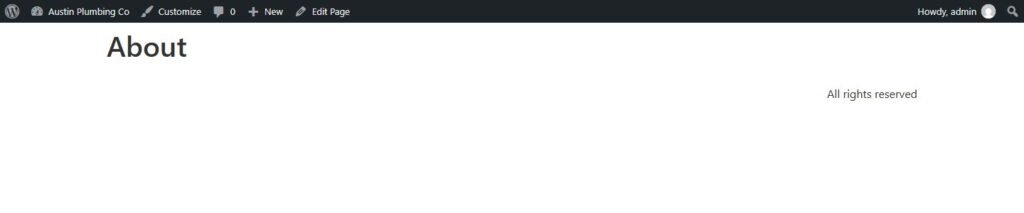
Click Publish in the Customizer. In my test, the About page lost its header while "All rights reserved" in the footer stayed in place.
#site-header is the header ID in Hello Elementor. Other themes use different names: right-click your header, choose Inspect, and look for the <header> tag's ID or class, then use that in the rule. If you have Elementor Pro, you can paste the rule into the page's own Custom CSS field instead, where the page ID part is not needed.
How to hide the header on every page
Hiding the header everywhere usually means you are building your own header, with Elementor Pro's Theme Builder or by hand on each page. There are two ways to do it.
In Hello Elementor: Disable theme header and footer
Hello Elementor has a switch for exactly this. Go to Hello, Settings in the WordPress admin menu, open the Structure and layout tab, and turn on Disable theme header and footer. It removes both from every page, along with their CSS and JavaScript files.
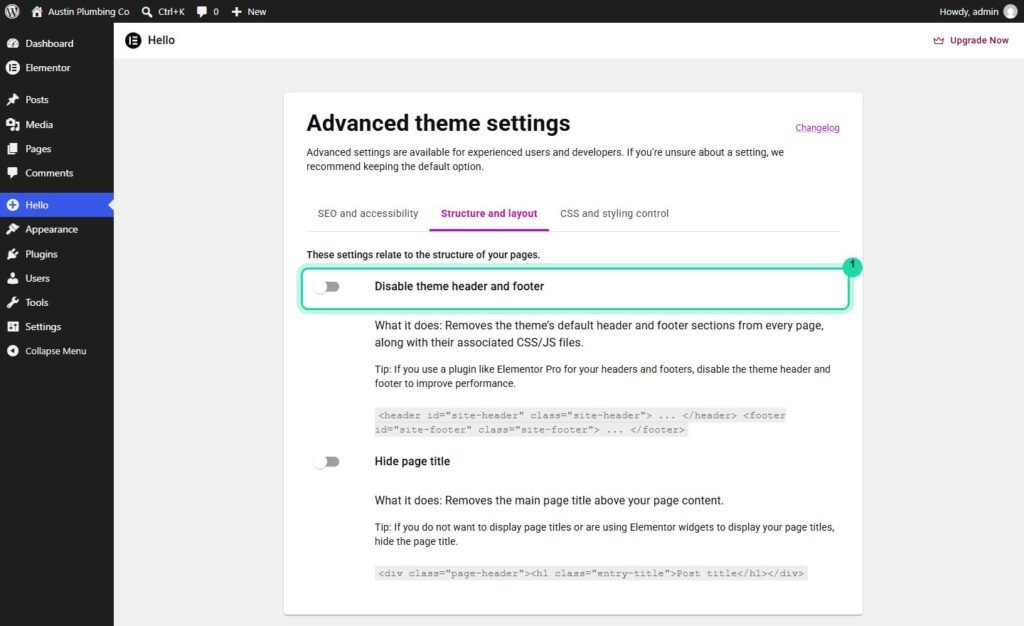
In any theme: make Canvas the default layout
In the Elementor editor, open the menu in the top left, go to Site Settings, Layout, and set Default Page Layout to Elementor Canvas. New and existing pages set to Default then load without the header. Pages you have set to another layout keep it.
How to hide an Elementor Pro header on specific pages
If your header is an Elementor Pro Theme Builder template, its display conditions decide where it appears. Instead of hiding it with CSS, exclude the pages where it should not load at all:
Go to Templates, Theme Builder, and open your header template.
Click the arrow next to Publish and choose Display Conditions.
Keep Include: Entire Site, then add a condition set to Exclude, choose Singular, Page, and select the page.
Save and reload the page to confirm.
This beats CSS for a Pro header, because an excluded header is never loaded, while a CSS-hidden one still downloads with the page and adds weight; here is how to speed up an Elementor website if pages already feel heavy. Elementor Canvas also removes Pro headers, so Method 1 works here too.
How to hide the header on mobile only
To keep the header on desktop and hide it on phones, wrap the rule in a media query. Elementor's default mobile breakpoint is 767 pixels:
@media (max-width: 767px) {
#site-header {
display: none;
}
}
For a header built in Elementor, you can do the same without code: select the header section or container, open Advanced, Responsive, and switch on Hide On Mobile. Think twice before hiding navigation on phones, though, since most visitors arrive on one.
Header still showing? Four things to check
You turned on Hide Title, not a layout change
Hide Title only removes the page's H1 title. The header is controlled by Page Layout, just below it in the same panel.
A cache is serving the old page
Caching plugins, your host, and Cloudflare can keep the old HTML. Purge the cache and check in a private window.
The CSS selector does not match your theme
If the rule does nothing, your theme's header has a different ID or class. Inspect the header and use the name you find. If a layout still looks wrong afterwards, our guide to a theme that does not look like the demo covers the usual causes.
The editor will not load the change
If Page Settings will not open or the preview never reloads, the problem is the editor rather than the header. Here is how to fix Elementor not working.
Key takeaways
How to hide header in Elementor WordPress comes down to what else should stay. Elementor Canvas removes the header and footer from one page in four clicks; a CSS rule scoped to the page ID hides only the header; Hello Elementor's settings or a Canvas default remove it site-wide.
For Elementor Pro headers, use display conditions so the header never loads on those pages. Whatever you choose, check the live page logged out and after clearing any cache.
Frequently asked questions
How do I hide the header on one page in Elementor?
Open the page in Elementor, click the Page Settings icon in the top bar, and set Page Layout to Elementor Canvas. Publish the page. The header and footer disappear from that page only, while every other page keeps them. This works in the free version of Elementor.
Does Hide Title in Elementor hide the header?
No. Hide Title only removes the page title, the large heading at the top of the content. The header with your logo and menu is controlled by the Page Layout setting, just below Hide Title in the same Page Settings panel.
How do I hide the header but keep the footer in Elementor?
Use CSS scoped to the page. Add a rule such as .page-id-5 #site-header with display none in Appearance, Customize, Additional CSS, using your own page ID and your theme's header selector. The footer stays, because only the header is targeted.
What is the difference between Elementor Canvas and Elementor Full Width?
Elementor Canvas removes the theme header, footer, and sidebar, leaving only what you build in Elementor. Elementor Full Width keeps the header and footer but lets your content stretch across the whole screen. Use Canvas for landing pages and Full Width for normal pages without side margins.
How do I remove the header from every page in Hello Elementor?
Go to Hello, Settings in the WordPress admin menu, open the Structure and layout tab, and switch on Disable theme header and footer. It removes both from every page, along with their CSS and JavaScript, which suits sites that build headers with Elementor Pro.
Can I hide the header only on mobile in Elementor?
Yes. Add a CSS rule inside a media query for screens up to 767 pixels, Elementor's mobile breakpoint, that sets the header to display none. For a header built in Elementor, select it and turn on Hide On Mobile under Advanced, Responsive.
Building landing pages in Elementor?
Survyc is an AI-first digital agency. We build Elementor landing pages without distracting headers, set up Pro headers with the right display conditions, and make sure pages still load fast. Our Elementor services cover builds and fixes.
If you would rather not hide header in Elementor WordPress pages yourself, or something breaks along the way, our WordPress customization team can do it for you. Send us the page URL, or email info@survyc.com.
Talk to usLast reviewed: September 2026. Tested with Elementor 4.3.2 and Hello Elementor 3.5.1. The Elementor editor changes often, so this guide is reviewed every quarter.
