

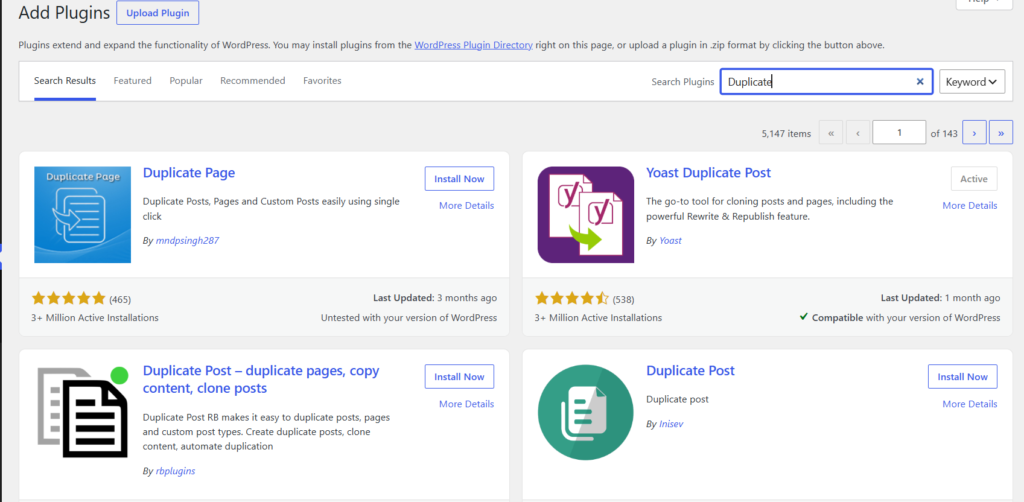
To duplicate a page in WordPress, either install a free plugin like Yoast Duplicate Post and click Clone on any page, or open the page in the block editor, choose Copy all blocks from the three-dot menu, and paste into a new page. The plugin copies everything. The manual method copies only content.
Duplicating a page takes about ten seconds, so this could be a very short article. The reason it is not is that the ten-second version quietly loses things, and people usually find out a week later when a cloned service page is still carrying the old service’s SEO description, or a page built in Elementor pastes in as an empty white screen. This guide covers every method, shows exactly what each one copies and drops, and gives you the short checklist to run afterwards.
Does WordPress have a built-in duplicate button?
No. As of 2026, WordPress core still has no one-click Duplicate option for pages and posts. This surprises people, since almost every other content system has one, and it is why the plugin directory contains so many duplication tools.
Two partial exceptions are worth knowing. The block editor includes a “Copy all blocks” command, which handles the content but nothing else. And WooCommerce does include a native Duplicate action for products, so if you are cloning a product rather than a page, you already have the button in Products, All Products.
For everything else you pick one of the four methods below.
Method 1: Duplicate with a plugin (best for most people)
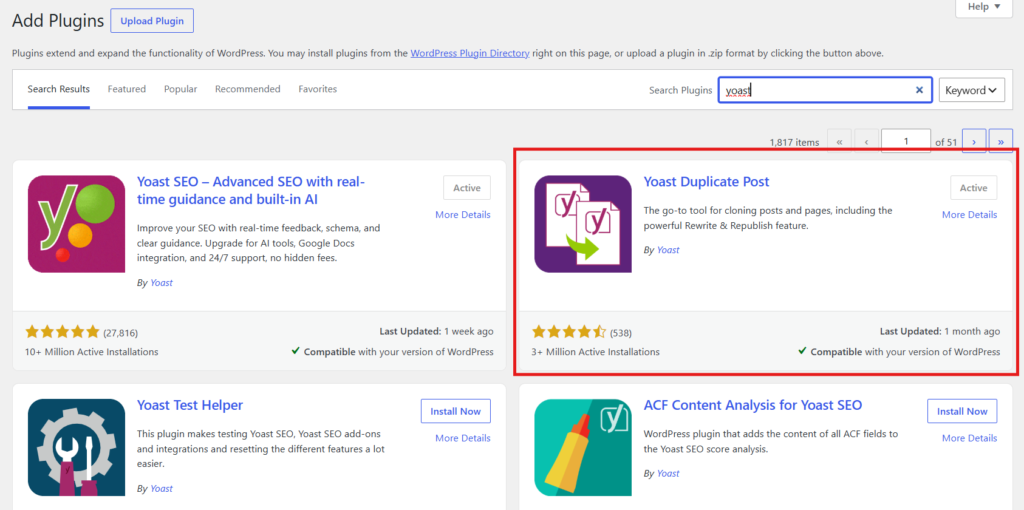
A duplication plugin is the right answer for most sites because it copies everything in one click: content, featured image, categories, tags, custom fields, SEO metadata and page builder data. The most widely used option is Yoast Duplicate Post, which is free, actively maintained (updated in 2026), and works with the block editor, page builders and custom post types.
How to use it:
- Go to Plugins, then Add New, search for “Yoast Duplicate Post”, then install and activate it.
- Go to Pages, then All Pages.
- Hover over the page you want to copy. Three new options appear: Clone, New Draft and Rewrite & Republish.
- Click Clone to create a silent copy in your list, or New Draft to create the copy and open it in the editor immediately.
- The copy appears as a draft, ready to edit.
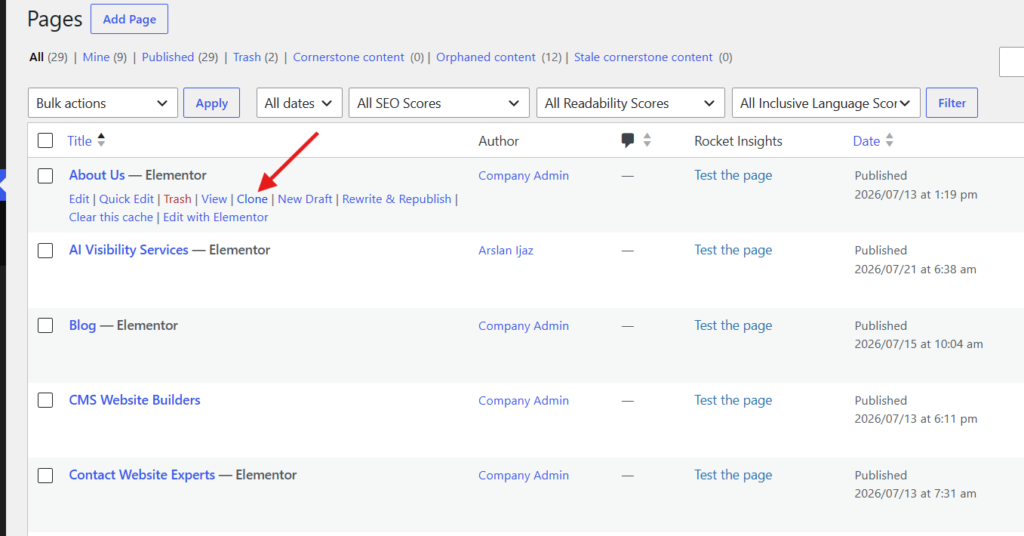
Those three buttons do different jobs, and mixing them up causes confusion. Clone makes a copy and leaves you in the list, which suits bulk work. New Draft makes a copy and opens it, which suits building one new page. Rewrite & Republish creates a working copy of a live page so you can revise it privately and then push your changes back onto the original URL, which is the one to use when you are updating an existing published page rather than creating a new one.
For duplicating several pages at once, tick the boxes in the Pages list, choose Clone from the Bulk actions dropdown, and apply.
You can control exactly what gets copied under Settings, then Duplicate Post. The defaults are sensible for most sites, but the Permissions tab is worth a look: it controls who is allowed to duplicate, and which post types show the buttons. If you want to clone WooCommerce products or a custom post type, enable it there.
Other established options exist if you prefer them, including Duplicate Page and Post Duplicator. They do the same core job; check that whichever you pick is actively maintained and supports custom post types if you need that.
Method 2: Duplicate without a plugin
If you only duplicate a page occasionally and would rather not add another plugin, the block editor can do it. Be clear on the tradeoff first: this copies the content and nothing else.
- Open the page you want to copy in the block editor.
- Click the three-dot menu in the top right corner.
- Scroll to Tools and choose Copy all blocks. (Alternatively click into the content, press Ctrl+A or Command+A to select everything, then Ctrl+C or Command+C.)
- Create a new page: Pages, then Add New.
- Click into the editing area and paste with Ctrl+V or Command+V.
- Add the title, set the featured image, fill in the SEO fields, choose the page template if you use one, and save as a draft.
There is a second no-plugin route through the Code Editor (same three-dot menu, choose Code Editor, copy the markup, paste it into the Code Editor of a new page). It achieves the same thing and is handy when a block refuses to paste cleanly.
If you still use the Classic Editor, switch to the Text tab, copy the HTML, and paste it into the Text tab of a new page.
One important warning. If the page was built with Elementor, Divi, Beaver Builder or a similar page builder, do not use this method. The builder stores its layout separately, and copying blocks strips that data, so you get an empty or broken page. Use the plugin method, or the builder’s own template feature described below.
Method 3: Add a duplicate button with code
If you would rather not install a plugin but want a permanent one-click button, a snippet in your child theme‘s functions.php can add a “Duplicate” link to the Pages and Posts list. This is the developer route, and it is genuinely fine, with two conditions.
Put the code in a child theme or a site-specific plugin, never directly in a parent theme’s functions.php, because a theme update will erase it. And back up before editing, since a syntax error in functions.php can take the site down with a white screen or a 500 error until you fix or remove it.
Honestly assessed, this method saves one plugin and costs you the maintenance of a piece of code. If you are comfortable with that trade, take it. If the phrase “child theme” is new to you, use Method 1 instead.
Method 4: Page builders and products
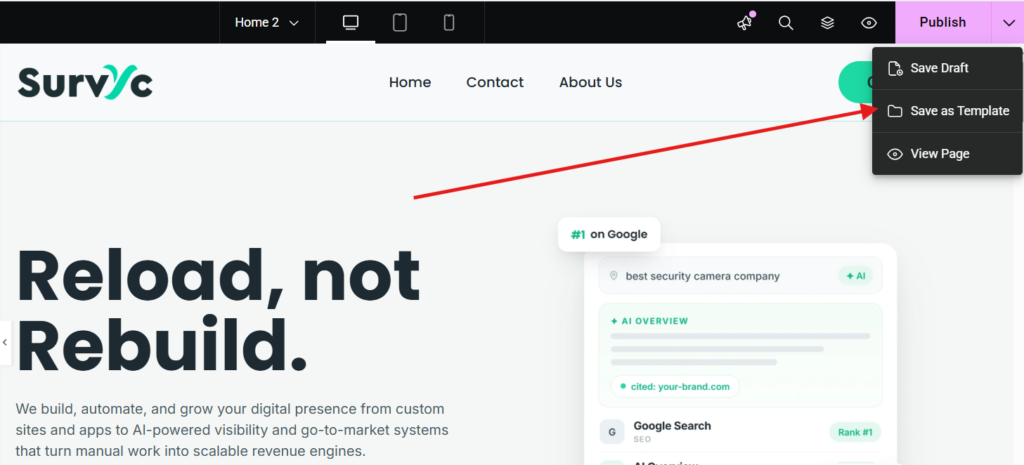
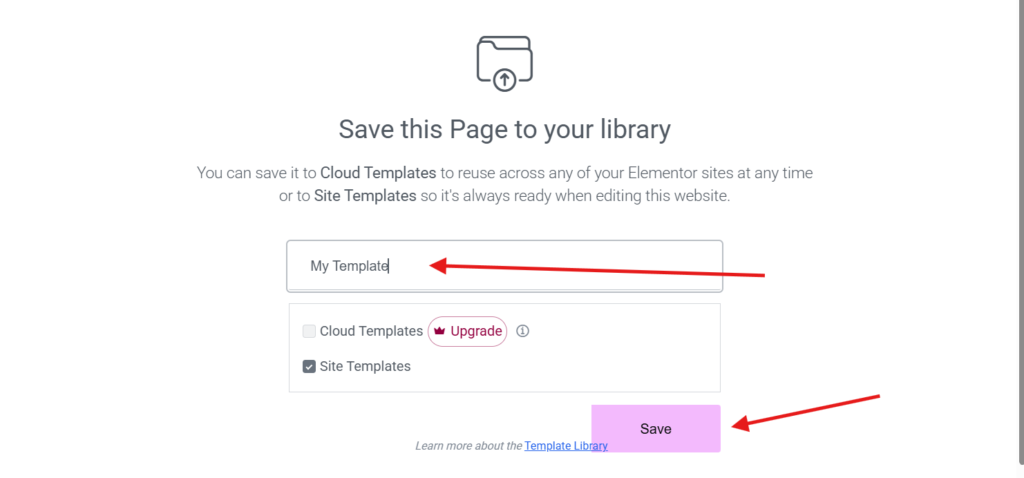
Elementor, Divi and Beaver Builder each have their own way of reusing a layout. In Elementor, open the page, click the arrow next to the Update button, choose Save as Template, then create a new page, open it in Elementor and insert that template from My Templates. This copies the design, not the page’s metadata, so treat it as a layout tool rather than a full duplicate. For a complete copy of a builder page, the plugin method is still better.
How to duplicate a Divi page
Divi reuses layouts through the Divi Library rather than a duplicate button:
- Open the page in the Divi Visual Builder.
- Open the page settings bar at the bottom of the screen and click Save to Library. Give the layout a name.
- Create a new page, choose to build it with Divi, and click Load From Library.
- Open Your Saved Layouts and pick the layout you just saved.
Like the Elementor method, this copies the design and content but not the SEO title, featured image, or categories. For a complete copy of a Divi page, including its settings, the plugin method is faster.
WooCommerce products need no plugin at all. Go to Products, then All Products, hover over a product and click Duplicate. WooCommerce copies the product with its data and creates a draft.
What each method actually copies
This is the table most guides leave out, and it is the part that saves you from an incomplete clone.
| Plugin (Duplicate Post) | Copy all blocks | Elementor template | WooCommerce duplicate | |
|---|---|---|---|---|
| Content and blocks | Yes | Yes | Yes (design) | Yes |
| Featured image | Yes | No | No | Yes |
| Categories and tags | Yes | No | No | Yes |
| SEO title and description | Yes | No | No | Yes |
| Custom fields | Yes | No | No | Yes |
| Page builder data | Yes | No | Yes | Not applicable |
| Page template setting | Yes | No | No | Not applicable |
| Bulk duplication | Yes | No | No | No |
The short version: if the page has a featured image, SEO fields, custom fields or builder design, the manual method will lose them and you will have to redo each one by hand. If the page is plain content, the manual method is perfectly fine.
After you duplicate: the five-minute checklist
A duplicate is a starting point, not a finished page. Run these five checks before you publish, because every one of them causes a real problem when skipped.
1. Set the slug yourself
WordPress will not allow two identical URLs, so it silently appends a number and you end up with /services-2/. Decide the final URL and set it in the page settings.
2. Rewrite the SEO fields
The clone inherits the original’s SEO title, meta description and any schema settings. A cloned service page still describing the previous service is one of the most common and most invisible mistakes, since the page looks correct while its metadata says something else.
3. Check the featured image and taxonomies
The plugin method carries these over, which is usually right but occasionally wrong. The manual method drops them entirely.
4. Fix internal links
Links copied from the original often still point at the original’s related pages. Read through and repoint anything that should now lead somewhere else.
5. Decide the page’s index status
Keep the copy as a draft while you work on it. Drafts are not visible to search engines, so they carry no SEO risk at all.
Does duplicating a page hurt SEO?
Duplicating a page has no SEO effect while the copy stays a draft, because drafts are not published and search engines never see them. The risk starts only when two near-identical pages are live at the same time, which is a real but easily avoided situation.
If two similar pages are published, search engines have to decide which one to rank, and they may pick the wrong one or dilute both. You have three clean ways to prevent that. Edit the copy until it is genuinely different before publishing, which is the normal case.
Set the copy to noindex while it is a work in progress on a live URL. Or, if the new page replaces the old one, publish the new page and 301 redirect the old URL to it so the accumulated value transfers instead of splitting.
One more habit worth building: delete cloned drafts you never used. Abandoned copies accumulate in the database and clutter your Pages list, and it is far easier to remove them now than to work out later which of four similar drafts was the real one.
Common mistakes to avoid
These come up repeatedly and each takes seconds to prevent.
- Copying blocks on a page-builder page. The layout data does not travel. Use the plugin.
- Publishing the clone with the auto-generated slug. /about-2/ looks unfinished and is rarely what you want.
- Forgetting the SEO metadata. Manual copying does not bring it, and cloning brings the wrong one.
- Leaving two near-identical pages live. Redirect the old one or make the new one genuinely different.
- Editing functions.php without a backup. A single missing character can white-screen the site.
- Letting everyone duplicate. On a multi-author site, restrict the permission to editors and admins in the plugin settings, so the Pages list does not fill with accidental copies.
Which method should you use?
Match the method to the situation rather than looking for one universal answer.
- You duplicate pages regularly, or the page has SEO fields, custom fields or builder design: use the plugin. This covers most people.
- You duplicate a page once or twice a year and it is plain content: use Copy all blocks. No plugin needed.
- You want a permanent button and are comfortable with a child theme: use the code snippet.
- You only want to reuse a layout, not the whole page: use your page builder’s template feature.
- You are copying a WooCommerce product: use the built-in Duplicate button.
Conclusion
WordPress has no built-in duplicate button for pages, so you either install a plugin or copy the blocks manually. The plugin route (Yoast Duplicate Post is the most widely used) copies everything including the featured image, SEO fields, custom fields and page builder data, and supports bulk cloning.
The manual Copy all blocks route copies content only, which is fine for plain pages and wrong for page-builder pages, where it strips the layout entirely. Whichever method you use, run the five-minute checklist afterwards: set the slug, rewrite the SEO fields, check the featured image, fix internal links, and keep the copy as a draft until it is genuinely different. Drafts carry no SEO risk. Two near-identical live pages do.
Frequently Asked Questions
How do I duplicate a page in WordPress without a plugin?
Open the page in the block editor, click the three-dot menu in the top right, and choose Copy all blocks under Tools. Create a new page and paste with Ctrl+V or Command+V. This copies the content only, so you will need to set the featured image, categories and SEO fields yourself.
Does WordPress have a duplicate page button?
No, WordPress core has no built-in duplicate button for pages and posts as of 2026. The block editor’s Copy all blocks command handles content, and WooCommerce includes a native Duplicate option for products, but full page duplication requires a plugin or a code snippet.
What is the best plugin to duplicate a page in WordPress?
Yoast Duplicate Post is the most widely used option. It is free, actively maintained, and copies content, featured images, categories, custom fields, SEO metadata and page builder data in one click. It also supports bulk duplication and custom post types. Duplicate Page and Post Duplicator are established alternatives.
Will duplicating a page hurt my SEO?
Not while the copy remains a draft, since search engines never see drafts. The risk appears only if you publish two near-identical live pages. Avoid it by editing the copy before publishing, setting it to noindex while unfinished, or redirecting the old page to the new one when it replaces it.
Why does my duplicated page look empty or broken?
This usually happens when the page was built with Elementor, Divi or another page builder and you copied the blocks manually. Builders store their layout separately from the block content, so the design does not travel. Use a duplication plugin, or save the layout as a template in the builder instead.
Can I duplicate several WordPress pages at once?
Yes, with a plugin. In Pages, All Pages, tick the boxes next to the pages you want, choose Clone from the Bulk actions dropdown, and apply. The manual copy method handles one page at a time, so bulk work is the clearest reason to install a duplication plugin.
