

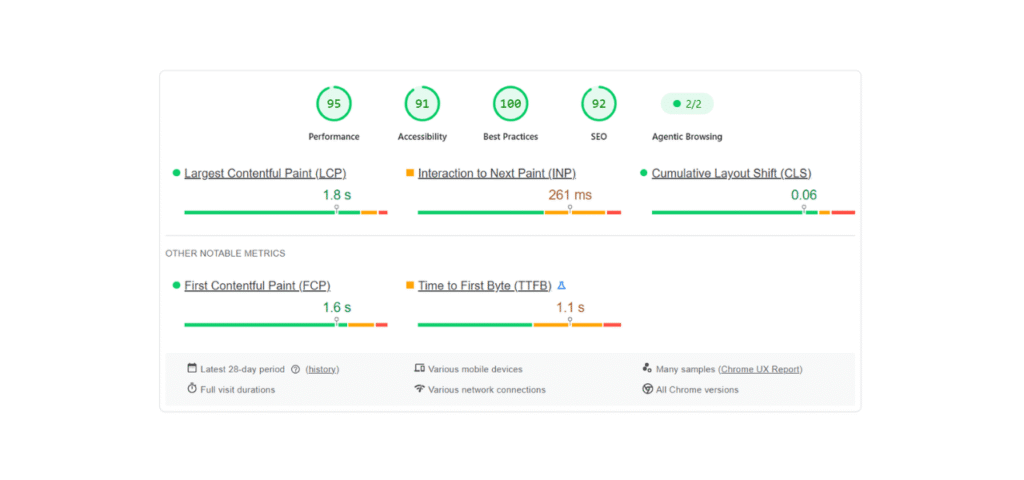
To speed up an Elementor website, first turn on Elementor’s own performance settings (Flexbox Container, Optimize DOM Output, Lazy Load Background Images) and disable unused widgets in Element Manager. Then remove addon packs you barely use, convert images to WebP, switch to a lightweight theme, and move to hosting that responds quickly.
Most advice on this topic is written for developers. This one is written for the person who owns the business, is watching enquiries drop, and has been told “it’s because you used Elementor.” That explanation is half true and not very useful. This guide covers what a slow Elementor site actually costs you, why Elementor sites get slow specifically, what you can fix yourself this afternoon, and what genuinely needs someone technical.
First, what does a slow site actually cost you?
Speed is not a vanity score. It is measurably the difference between a visitor who becomes a customer and one who leaves before your page finishes loading.
The numbers that matter to a business owner:
- 53% of mobile visitors abandon a site that takes longer than three seconds, according to Google’s research. Over half your mobile traffic, gone before seeing anything.
- Bounce probability rises 32% when load time goes from one second to three, 90% at five seconds, and 123% at ten (Google).
- A one-second delay costs roughly 7% of conversions. On a site doing $100,000 a month, that is real money leaving quietly.
- An improvement of just 0.1 seconds lifted retail conversions 8.4% in Deloitte’s retail study. Small gains compound.
- Sites passing Core Web Vitals see around 18% more organic traffic than those that do not (2026 performance analysis), because speed is a ranking signal and always has been.
The mobile gap is where most of the damage sits. As of 2026 the average desktop page loads in about 2.5 seconds while the average mobile page takes around 8.6 seconds, and mobile now carries the majority of traffic. If you have only ever checked your site on your office desktop over fast wifi, you have not seen what your customers see.
That is the honest business case. Now the cause.
Why do Elementor websites get slow?
Elementor sites get slow because the builder trades performance for design flexibility, and most sites never claw that trade back. Elementor generates extra HTML layers so you can style anything visually, which produces a larger DOM (the structure the browser has to parse), plus global CSS and JavaScript that often load on pages that do not need them.
Layered on top of that, four things make it worse in practice:
- Addon packs. Essential Addons, Ultimate Addons, Happy Addons and similar bundles frequently load their entire asset library on every page, even when you use three widgets from a set of ninety.
- Deep nesting. Sections inside sections inside columns inside inner sections. Each layer adds work for the browser, and mobile devices feel it most.
- Unoptimized images. Elementor does not compress your uploads. A hero image straight from a camera can outweigh the rest of the page combined.
- Cheap hosting. Elementor generates pages dynamically, so a slow server multiplies every other problem.
The honest framing, and one worth internalising before you spend money: Elementor is not the fastest builder, but a well-built Elementor site can absolutely score 90+ on mobile. Practitioners who optimize these sites for a living say the same thing repeatedly, that the platform is rarely the sole cause and unoptimized configuration usually is. You do not need to rebuild your site. You need to undo the defaults nobody changed.
Editor lag and slow pages are two different problems
This distinction saves people weeks, and almost nobody explains it.
Editor lag is when the Elementor panel freezes as you drag a widget, or padding changes take three seconds to register. This is a server resource and browser memory problem. Caching plugins do nothing for it. It affects you, not your customers.
Frontend slowness is what visitors experience: pages taking six seconds, Core Web Vitals in the red. This comes from DOM bloat, page assets, fonts and addon overhead.
They have different causes and different fixes. If your complaint is “the editor is unbearable,” more RAM and better hosting is your answer. If your complaint is “customers say the site is slow,” everything below applies. Fixing the wrong one is why people install three caching plugins and see nothing change.
Step 1: Measure before you touch anything
Test with Google PageSpeed Insights at pagespeed.web.dev, and read the mobile tab, not desktop. Desktop scores flatter every site and hide the problem your customers actually have.
Write down three numbers so you can prove whether anything you do works:
- Your mobile score and which Core Web Vitals fail (LCP, CLS, INP) and how to fix it.
- Server response time, shown in the diagnostics as Time to First Byte. Google treats under 800 milliseconds as good; well-tuned hosting lands far below that. If yours is high, hosting is your bottleneck and no plugin will fix it.
- Total page size. Anything over about 2MB on a normal page is worth investigating.
Test the same page three times, a minute apart. Wild swings in server response point at overcrowded shared hosting rather than your page.
Step 2: Turn on Elementor’s own speed settings (free, five minutes)
Elementor ships performance features that are not all switched on by default, and most site owners have never opened this screen. This is the highest return for the least effort on the entire list.
Go to Elementor, then Settings, then the Features tab, and enable:
- Flexbox Container. The modern layout method. It produces significantly less code than the old Sections and Columns structure, which directly reduces DOM size. New content you build will use it.
- Optimize DOM Output. Removes unnecessary wrapper elements from the HTML.
- Lazy Load Background Images. Background images load as the visitor scrolls instead of all at once.
- Improved CSS Loading and Improved Asset Loading, where available. These stop Elementor loading assets on pages that do not use them.
Then go to Elementor, then Element Manager, and disable every widget type you never use. This matters more than it sounds: if a widget type is disabled, its scripts never load anywhere on your site.
Existing pages built with old Sections will not convert themselves to Flexbox automatically. That is fine. Enable the settings now so everything new is lean, and rebuild your highest-traffic pages later if the numbers justify it.
One myth to clear up while you are in here. “Regenerate CSS & Data” is not a speed fix. It resolves styling that stopped displaying correctly after an update. It does nothing for server response, JavaScript weight or addon overhead. It is the most common first thing people try, and it is almost never the answer.
Step 3: Audit your addons (the biggest hidden cause)
This is where the largest single win usually hides. Addon packs are the most common reason an otherwise reasonable Elementor site loads slowly, because many of them load their whole library on every page regardless of what you use.
Do this honestly: list every Elementor addon plugin you have active, then count how many widgets from each one appear on your actual live pages. The typical answer is two or three widgets from a pack of eighty. If you are using a handful of widgets from three different packs, you are carrying three full asset libraries for a job one could do.
Consolidate to one addon pack if you can, delete the others, and rebuild the few affected elements with what remains. If an addon offers modular loading (only loading the widgets you enable), turn that on. Deactivated is not deleted, so remove what you are not using rather than leaving it dormant.
The same logic applies to your general plugin list. Ten well-built plugins beat four heavy ones, so quality matters more than count, but every plugin you do not need is pure cost.
Step 4: Fix your images
Images are usually the heaviest thing on an Elementor page and the easiest to fix without touching design.
Three actions cover it. Convert to WebP, a modern format that typically cuts file size dramatically with no visible quality loss, using a plugin like ShortPixel or Imagify, or an image CDN. Serve correctly sized images rather than uploading a 4000-pixel-wide photo and letting CSS shrink it into a 400-pixel slot. And enable lazy loading so images below the fold load only when the visitor scrolls to them.
While you are here, check your hero image specifically. On most business sites it is the Largest Contentful Paint element, meaning it literally is the metric Google measures, and shrinking it often moves the mobile score more than everything else combined.
Step 5: Check your theme and fonts
Elementor controls your layout, so your theme should do as little as possible. A heavy multipurpose theme underneath Elementor means two systems loading styles for the same page. Elementor own Hello theme exists for exactly this reason, and lightweight alternatives like Astra or GeneratePress work well too.
Fonts are a smaller but genuinely easy win. Each font family and weight you load is another request, and external font requests block rendering. Cut to two families at most, keep only the weights you use, and host fonts locally if your setup supports it. The same applies to icon libraries loading in full when you use four icons.
Step 6: Hosting, caching and a CDN
These three set the ceiling for everything else, which is why they come after the Elementor-specific work rather than before it: fixing hosting on a bloated site helps less than fixing both.
Hosting matters more for Elementor than for a simple site because pages are generated dynamically. If your server response time is consistently slow, moving from budget shared hosting to managed WordPress hosting or a decent VPS often halves load time on its own. Look for current PHP, SSD or NVMe storage, and enough resources that you are not sharing a server with hundreds of neighbours.
Caching stores a ready-made copy of your pages so the server stops rebuilding them per visit. Use one caching plugin, not three. WP Rocket, LiteSpeed Cache (free where your host supports it) or your host’s built-in caching all work. Stacking multiple caching plugins causes conflicts and can make a site slower.
A CDN serves your files from a server near each visitor. Cloudflare’s free tier is enough for most business sites.
Step 7: Simplify what you build from here
The last step is a habit rather than a task. Every extra layer you add costs speed, so build with that in mind.
Use Flexbox Containers instead of nested sections and columns. Avoid stacking sections three and four levels deep when one will do. Go easy on animations and parallax effects, which run on the visitor’s device and hit weaker phones hardest. Limit embedded videos and third-party widgets on important pages, and load them below the fold when you do use them. And keep your database tidy, since Elementor stores page data there and it accumulates.
None of this means building ugly pages. It means not paying for complexity you cannot see.
What you can do yourself, and what you cannot
Being honest about this saves you both money and risk.
Safe to do yourself this afternoon: turning on the Elementor Features settings, disabling unused widgets in Element Manager, installing an image optimization plugin and running it, deleting plugins and addons you do not use, setting up Cloudflare’s free CDN, and running PageSpeed Insights before and after so you can see what changed.
Worth handing to someone technical: configuring caching correctly for your specific host and plugin stack (the settings interact, and wrong ones break checkout and forms), migrating to better hosting without downtime, removing an addon pack that half your pages depend on, diagnosing why a site is slow when the obvious causes are already fixed, and anything involving code, dequeuing scripts or your theme’s functions file.
The dividing line is simple: if the worst case is “it did not help,” do it yourself. If the worst case is “the site is down or the checkout broke,” get help. Take a backup before either.
If you decide to hire someone
You do not need an agency contract for this. Speed optimization is a well-defined, one-off project, and plenty of competent freelancers and small studios do it as a fixed-scope job with no ongoing commitment. Some businesses then keep a monthly maintenance arrangement afterwards so the site does not drift back; that is optional and separate.
What to look for, whoever you hire:
- They measure first and show you the numbers. Anyone quoting a price before seeing your site is guessing.
- They work on staging, not your live site. Ask this directly. “We work on the live site” is the wrong answer for a business that takes enquiries or orders.
- They give you before-and-after evidence, meaning real load times and Core Web Vitals on mobile, not just a screenshot of a score.
- They tell you the ceiling honestly. If your hosting caps what is achievable, a good person says so before taking your money rather than after.
- The scope and price are agreed in writing before work starts, and you keep access to everything.
Fair questions to ask: what specifically will you change, will my design change, what happens if something breaks, and what will the site score when you are done. Vague answers to those are a reason to keep looking.
What results should you realistically expect?
Most business sites move from a failing mobile score to a passing one, and load times commonly drop by half or more once hosting, caching, addons and images are all addressed. Stores and sites with heavy functionality improve substantially but usually land lower than a simple brochure site, because there is genuinely more to load.
Two honest limits. A perfect 100 is not the goal and chasing it wastes money; passing Core Web Vitals on mobile is the goal, since that is what Google measures and what users feel. And speed decays. Every new plugin, addon and unoptimized image nudges the site back, so retest quarterly and after any significant change.
Conclusion
A slow Elementor site is expensive in a measurable way: over half of mobile visitors leave after three seconds, and a single second of delay costs roughly 7% of conversions. Elementor sites get slow because of DOM bloat, addon packs loading everything, unoptimized images and weak hosting, not because Elementor cannot be fast.
Start with the free wins inside Elementor itself (Flexbox Container, Optimize DOM Output, Lazy Load Background Images, and disabling unused widgets in Element Manager), then audit your addons, fix images, lighten your theme, and get hosting and caching right.
Separate editor lag from frontend slowness, because they have different fixes. Measure on mobile before and after so you know what actually worked. And when the remaining work risks breaking something, hire it out as a fixed-scope project rather than experimenting on a live business site.
Frequently Asked Questions
Why is my Elementor website so slow?
Usually a combination of DOM bloat from deeply nested layouts, addon packs loading their full asset library on every page, unoptimized images, a heavy theme, and slow hosting. Elementor adds extra HTML layers for design flexibility, and most sites never adjust the settings that reduce that overhead.
Does Elementor slow down your website?
Elementor adds more code than lighter builders, so it starts at a disadvantage, but it does not doom your site. Well-built Elementor sites score 90+ on mobile. The platform is rarely the sole cause of poor performance; unoptimized configuration, heavy addons and cheap hosting usually are.
How do I make my Elementor site load faster for free?
Enable Flexbox Container, Optimize DOM Output and Lazy Load Background Images under Elementor, Settings, Features. Disable unused widgets in Element Manager. Delete addons and plugins you do not use, compress images to WebP with a free plugin, and set up Cloudflare’s free CDN. All of that costs nothing.
Does regenerating CSS speed up an Elementor?
No. Regenerate CSS and Data fixes styling that stopped displaying correctly after an update or setting change. It does not improve server response time, JavaScript weight or addon overhead. It is the most common first attempt at fixing a slow Elementor site and almost never the actual solution.
Should I switch from Elementor to Gutenberg for speed?
Not as a first move. Rebuilding an entire site is expensive and risky, and most Elementor sites have significant unclaimed gains in settings, addons, images and hosting. Fix those first and measure. If you are still short of your targets afterwards, then a rebuild becomes a reasonable conversation.
How much does Elementor speed optimization cost?
It varies by site size and how much is wrong, and it is normally a one-off fixed-scope project rather than a contract. Insist on a measurement-first approach: a credible provider tests your site, tells you what is achievable and what your hosting limits, then quotes in writing before starting.
