

To fix a WordPress plugin that is not working, work from the cheapest cause to the most involved. Clear your cache, confirm the plugin’s license and any dependencies are active, then update WordPress, the plugin, PHP, and your theme. If it still fails, deactivate all plugins and reactivate them one at a time to find a conflict.
The fix is not random clicking. It is a short, ordered process, and identifying your symptom first tells you where to start. Most plugin problems resolve in the first two steps, long before you need to touch a single file.
What kind of “not working” are you dealing with?
Name the symptom before you change anything, because the two common failures need different fixes. A plugin that will not activate, or that crashes your site into a white screen or fatal error, is a code-level problem, so head for the conflict, PHP, and reinstall steps. A plugin that is active but whose feature simply does nothing is usually a cache, license, dependency, or JavaScript problem, which the quick checks below fix in seconds.
Two rules before you start. Back up your site first, so any change is reversible. And do not troubleshoot on a live checkout, form, membership, or booking page, because deactivating the wrong thing there can cost you real orders. If the affected feature is business-critical, test on a staging copy instead.
Rule out the quick causes first
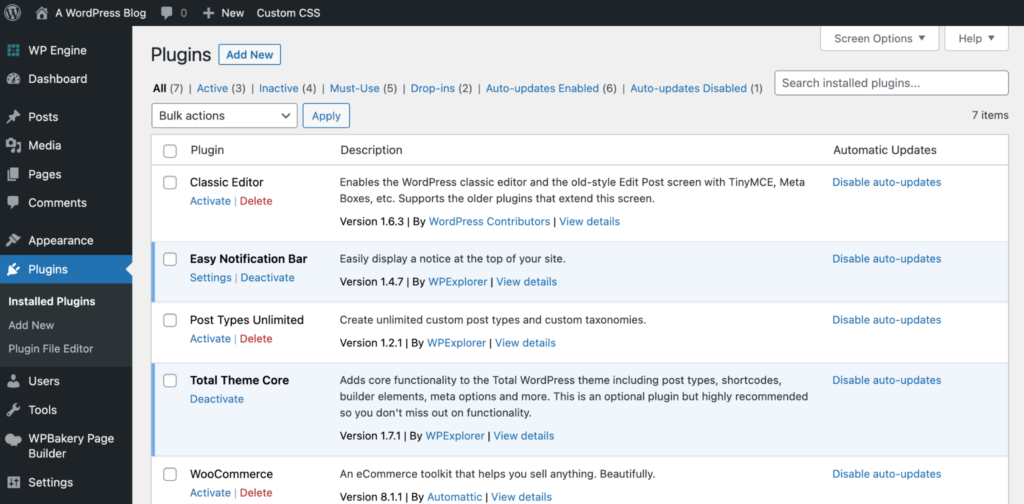
Start here, because these take under a minute and fix a large share of “not working” reports. The heavier guides skip past them and send you straight to conflict hunting, which wastes your time when the real cause is a stale cache.
Clear every cache: your browser, your caching plugin, your host’s cache, and your CDN like Cloudflare. Each keeps its own copy, so clearing one is not enough. Then reload the site in an incognito window to confirm you are seeing the current version, not a saved broken one.
Next, check two things people forget. If it is a premium plugin, confirm the license key is entered and active, because many paid plugins quietly disable features or updates without one. And confirm any parent plugin is installed and active, since WooCommerce, Elementor, and page-builder add-ons often do nothing until their core plugin is running.
Update WordPress, the plugin, PHP, and your theme
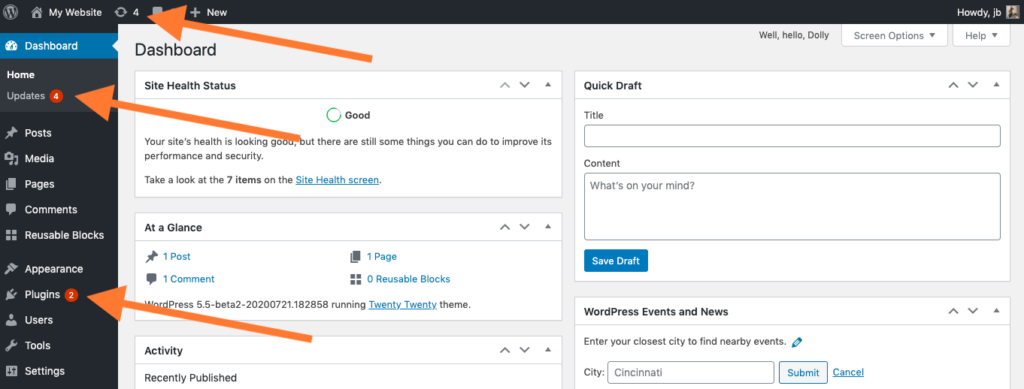
Version mismatches are one of the most common reasons a plugin breaks. A plugin built for a newer WordPress version can fail on old core, and a modern plugin can silently break on an outdated PHP version with error messages that never mention PHP at all.
Update WordPress core, the plugin itself, and your theme to their current versions. Then check your PHP version in your hosting panel and make sure you are on a currently supported release, which as of July 2026 means PHP 8.1 or higher. One exception: if the plugin broke immediately after a specific update, do the opposite and roll that one update back first, since the new version is the likely cause.
How do you find the plugin causing a conflict?
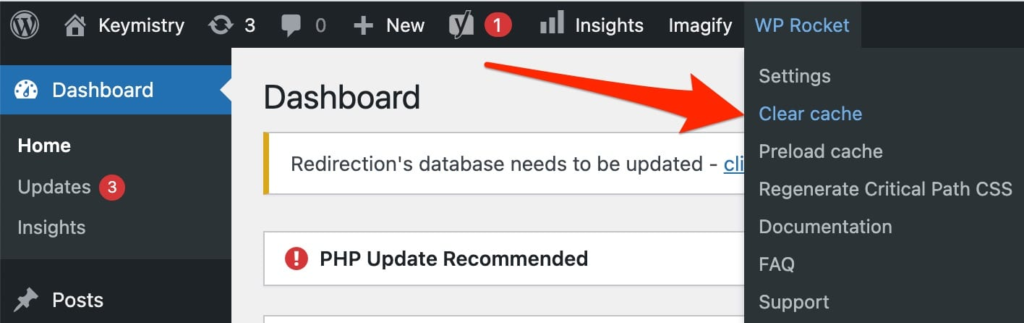
If your site is fully updated and caches are clear but the plugin still will not work, you almost certainly have a conflict, where two pieces of code fight over the same resource. Finding it is a process of elimination, and you only need to do it once, carefully.
Deactivate all your plugins except the one you are fixing, and test it. If it works alone, a conflict exists. Reactivate your other plugins one at a time, testing the broken feature after each one. When the problem returns, the last plugin you activated is the culprit. Then switch to a default theme like Twenty Twenty-Five and test again, which tells you whether your theme, rather than a plugin, is the conflict.
If the plugin crashed your site and you cannot reach wp-admin to do this, connect over FTP or your host’s file manager, open wp-content/plugins, and rename the folder of the suspected plugin. WordPress deactivates it the moment the folder name changes, which usually gets you back into the dashboard.
Still not working? Reinstall or read the error
If nothing above worked, the plugin’s own files may be corrupted, which happens after a failed update or an interrupted download. Deactivate and delete the plugin, then install a fresh copy. Check the plugin’s documentation first, because some plugins keep your settings after deletion and some wipe them, and you do not want to lose your configuration by surprise.
When you need the actual cause, get the real error message rather than guessing. Open your browser’s developer tools and check the Console tab for JavaScript errors, which explain features that fail while the plugin stays active. For deeper problems, enable WP_DEBUG in wp-config.php to log the exact PHP error. Even if you cannot fix it yourself, that message tells a developer precisely where the plugin is failing.
When should you call a developer?
Get help when the stakes or the complexity outrun a safe do-it-yourself fix. That means a conflict that keeps returning, a fatal error you cannot read, a business-critical feature like checkout or memberships that you cannot risk breaking further, or a live site with no safe way to test. There is no downside to escalating a problem that is costing you orders every hour it stays broken.
Conclusion
Fixing a WordPress plugin that is not working is an ordered process, not guesswork. Identify your symptom first, then clear caches, confirm licenses and dependencies, and update everything before you touch anything heavier. Only then isolate a conflict by deactivating and reactivating plugins one at a time, and reinstall or read the error log if the problem survives all of that. Back up before you start, and never experiment on a live checkout or membership page.
Still stuck on a broken plugin?
If you have worked through these steps and the plugin still will not behave, or the site is business-critical and you would rather not risk it, that is the kind of fix we handle. Survyc is an AI-first digital agency that resolves WordPress plugin conflicts and errors for agencies and their clients, working as an embedded part of your team. Tell us what broke at info@survyc.com.
Frequently asked questions
Why did my plugin stop working after an update?
Updates change code, so a WordPress core, PHP, or theme update can break a plugin built for the older version, and a plugin update can introduce a bug of its own. If the failure started right after one specific update, roll that update back first. Otherwise, update everything to current versions so they are compatible again.
Can one plugin conflict break my whole site?
Yes. A plugin conflict is behind a large share of WordPress white-screen crashes, because two plugins fighting over the same resource can trigger a fatal error that takes the whole site down. Deactivating all plugins and reactivating them one at a time isolates the offender. If you are locked out, rename the plugin folder over FTP to deactivate it.
Will deactivating plugins delete my settings?
Deactivating a plugin does not delete its settings; it only turns the plugin off temporarily, so you can safely deactivate and reactivate during troubleshooting. Deleting a plugin is different. Some plugins keep your data after deletion and some remove it, depending on their cleanup settings, so check the plugin’s documentation before deleting anything important.
How do I fix a plugin if I cannot log in to wp-admin?
Use FTP or your host’s file manager. Open the wp-content/plugins folder and rename the folder of the plugin you suspect. WordPress deactivates it instantly because the folder name no longer matches, which usually restores access to your dashboard. From there you can troubleshoot normally, reinstall the plugin, or remove it if it was the cause.
