

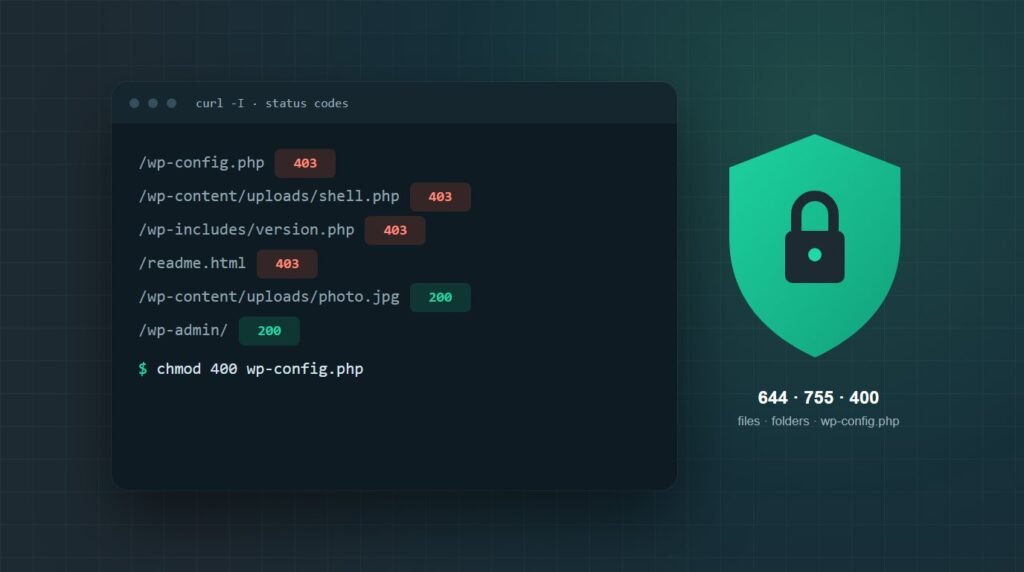
To protect WordPress files, set files to 644 and folders to 755, lock wp-config.php to 400 or 440, turn off the dashboard file editor, stop PHP from running in wp-content/uploads, and block direct access to include-only files, backups, and logs. Then check core and plugin files against WordPress.org checksums every month.
I tested every rule in this guide on a clean Apache 2.4 server and on Nginx before writing it down, using a fake WordPress folder full of files that should and should not load.
Each section shows what the rule blocks and what it leaves alone. That second part matters: a file rule that also blocks your images or the admin area is worse than having no rule at all.
The checklistHow to set the right WordPress file permissions
The first step to protect WordPress files is permissions: 644 for files, 755 for folders, and 400 or 440 for wp-config.php. That is the scheme in WordPress's own file permissions documentation, and it means only your account can change files while the web server can still read them.
With SSH access, two commands reset a whole install. Replace the path with your WordPress folder:
find /path/to/wordpress/ -type f -exec chmod 644 {} \;
chmod 400 /path/to/wordpress/wp-config.php
No SSH? In an SFTP client such as FileZilla, right-click a file or folder, choose File permissions, and enter the number. For folders, tick the option to apply it to subdirectories.
Ownership matters as much as the numbers. WordPress recommends that files belong to your hosting account user, not to the web server user, with wp-content writable by both so uploads and updates still work.
Any guide or plugin that tells you to chmod a folder to 777 is asking you to let every process on the server write there. If an upload fails, the real fix is usually ownership, not wider permissions.
How to protect wp-config.php
wp-config.php holds your database password and security keys, so it gets three layers: strict permissions, a server rule that refuses web requests for it, and optionally a new location outside the public folder.
Set wp-config.php to 400 or 440
If the site shows "Error establishing a database connection" straight afterwards, the web server can no longer read the file. Switch to 440, or 600 on hosts where PHP runs as your own user. Our guide to the database connection error covers the other causes if it persists.
Block web requests for wp-config.php
Add this to the .htaccess file in your WordPress root, outside the # BEGIN WordPress and # END WordPress lines so WordPress never overwrites it:
Require all denied
</Files>
On Nginx, which ignores .htaccess, the same protection goes in the server block. The full Nginx set is in step 5.
Optionally move it one folder up
WordPress looks for wp-config.php one directory above the install if it is not in the root, so you can move it out of the public folder entirely. This only helps when that parent folder is outside the web root, and it does not work when another WordPress install already lives there.
How to turn off the file editor in the dashboard
Add one line to wp-config.php, above the line that says "That's all, stop editing!":
This removes the theme and plugin file editors from the dashboard. If someone steals an admin password, they can no longer paste PHP into your theme from a browser, which is one of the fastest ways a stolen login becomes a hacked site.
A stronger option exists: DISALLOW_FILE_MODS also blocks installing, updating, and deleting plugins and themes from the dashboard, including automatic updates. Use it only if updates run through WP-CLI or a deployment process, or your plugins will quietly fall behind.
How to stop PHP running in wp-content/uploads
The uploads folder should only ever hold images, PDFs, and other media, never code. Blocking PHP there means that if an attacker does get a file uploaded through a vulnerable plugin, requesting it returns a 403 instead of running it.
Create a file named .htaccess inside wp-content/uploads with this rule:
<FilesMatch "\.(?i:php[0-9]?|phtml|phar)$">
Require all denied
</FilesMatch>
The (?i:...) part makes the match case-insensitive. In my Apache test, it blocked shell.php, shell.PHP, shell.phtml, and shell.php5, while photo.jpg and doc.pdf in the same folder still loaded normally.
If a plugin stops working after this, it was running PHP from your uploads folder. That is a design choice worth asking its developer about rather than a reason to remove the rule.
How to block include-only files, backups, logs, and wp-cron.php
A default install also exposes files nobody needs to request directly: PHP files meant only to be included, version details in readme.html, and anything left behind by backups or debugging. These rules go in the root .htaccess, again outside the WordPress block.
Include-only files in wp-includes and wp-admin/includes
This block comes straight from WordPress's hardening guide. Do not use it on Multisite, where it interferes with how uploaded files are served.
<IfModule mod_rewrite.c>
RewriteEngine On
RewriteBase /
RewriteRule ^wp-admin/includes/ - [F,L]
RewriteRule !^wp-includes/ - [S=3]
RewriteRule ^wp-includes/[^/]+\.php$ - [F,L]
RewriteRule ^wp-includes/js/tinymce/langs/.+\.php - [F,L]
RewriteRule ^wp-includes/theme-compat/ - [F,L]
</IfModule>
Directory listings
Without an index file, some servers list every file in a folder, which hands out your whole uploads archive. One line turns that off:
Backups, logs, and install leftovers
<FilesMatch "\.(bak|old|orig|sql|log|swp)$|^(readme\.html|license\.txt|wp-config-sample\.php)$">
Require all denied
</FilesMatch>
This covers files like wp-config.php.bak, database dumps, and wp-content/debug.log, which can reveal server paths. Blocking readme.html and license.txt works better than deleting them, because every WordPress update puts them back and the checksum check in step 6 flags them as missing.
Move wp-cron to a server cron, then block wp-cron.php
WordPress runs scheduled tasks through wp-cron.php, which any visitor can request. Repeated requests to it make the server run cron work on demand, so on busy or targeted sites it becomes an easy way to add load. The fix has three parts, and the order matters.
If you block wp-cron.php before a server cron is running, scheduled posts stop publishing and show "Missed schedule", and plugin updates, backups, and emails that depend on cron stop too. Some managed hosts already call wp-cron.php over the web for you; ask yours before blocking it.
First, stop WordPress from running cron on page loads by adding this to wp-config.php:
Second, add a real cron job in your hosting panel or crontab that runs due events every five minutes through WP-CLI. It runs on the server itself, so it keeps working after the web block:
Third, once a scheduled test post has published on time, block web requests for the file:
<Files "wp-cron.php">
Require all denied
</Files>
location = /wp-cron.php { deny all; }
On both servers in my test, wp-cron.php returned 403, with or without the ?doing_wp_cron query string, while pages, images, and wp-admin kept loading.
How to protect WordPress files on Nginx
Nginx does not read .htaccess, so everything goes in the server block. Place these above your main location ~ \.php$ block, because Nginx uses the first regex location that matches. Add the wp-cron.php rule above only if the server cron is in place:
location = /wp-config.php { deny all; }
location ~* ^/wp-content/uploads/.*\.(php[0-9]?|phtml|phar)$ { deny all; }
location ~ ^/wp-admin/includes/ { deny all; }
location ~ ^/wp-includes/[^/]+\.php$ { deny all; }
location ~ ^/wp-includes/js/tinymce/langs/.+\.php$ { deny all; }
location ~ ^/wp-includes/theme-compat/ { deny all; }
location ~* \.(bak|old|orig|sql|log|swp)$ { deny all; }
location ~* ^/(readme\.html|license\.txt|wp-config-sample\.php)$ { deny all; }
location ~ /\.(?!well-known) { deny all; }
In my Nginx test, these returned 403 for every protected path while images, wp-admin, normal pages, and /.well-known/ (which SSL certificate renewals need) kept working. The last rule also hides .git folders and other dotfiles, which Apache does not block by default.
How to check WordPress files for unexpected changes
WP-CLI gives you two monthly checks: whether your core and plugin files still match the official copies, and whether anything unfamiliar is scheduled to run.
Compare core and plugin files against checksums
The core check compares WordPress itself against the official copies on WordPress.org and lists anything that differs; the plugin check does the same for every plugin hosted on WordPress.org.
Neither command checks your theme, your uploads, or premium plugins bought outside WordPress.org, so they are a first pass rather than a full scan. If core files fail, replace them with clean copies; our guide to replacing WordPress core files walks through it safely.
Run both once a month. A modified core file you did not change is one of the clearer signs a WordPress site is hacked.
Check scheduled cron events
Malware often leaves a scheduled event behind that rewrites files after you clean them, which is why a site can look fixed and be reinfected a day later. List every scheduled event:
Core hooks mostly start with wp_, and plugins usually name theirs after the plugin. A hook with a random-looking name, or one you cannot trace to anything installed, is worth investigating before you delete it.
Keep off-site backups and use SFTP
File protections reduce the chance of a break-in; backups decide how bad one gets. Keep at least one copy of your files and database off the server, and test a restore now and then. Our WordPress backup guide covers what a useful backup includes.
Connect with SFTP rather than plain FTP. FTP sends your password unencrypted, which undoes careful permissions the moment someone captures it.
How to test your WordPress file protections
Request each protected path and confirm the status code. A 403 means the rule works; a 200 on a sensitive file means it does not. Upload a harmless test.php to your uploads folder first, and delete it afterwards.
What if a file protection breaks your site?
Every change here can be undone in under a minute over SFTP, which is why you should keep the connection open while you work.
500 error right after editing .htaccess
Usually a typo or a directive your server does not allow. Rename .htaccess to .htaccess-off to get the site back, then add the rules one block at a time. Our 500 internal server error guide covers the other causes.
403 on the whole site
Permissions are too strict or ownership is wrong, often a folder set below 755. Reset with the find commands in step 1. Here is how to work through a WordPress 403 forbidden error if that does not clear it.
Database connection error after changing wp-config.php
The web server cannot read the file at 400. Change it to 440, or 600 where PHP runs as your user.
Key takeaways
Protecting WordPress files comes down to three questions for each file: who can read it, who can change it, and can it run as code. Permissions of 644 and 755, with 400 or 440 on wp-config.php, answer the first two.
Server rules answer the third. Block PHP in wp-content/uploads, deny web requests for wp-config.php and include-only files, and hide backups, logs, and readme.html. Block wp-cron.php too, but only once a server cron runs your scheduled tasks. Every rule in this guide returned 403 on its target in testing and left images, pages, and wp-admin working.
Then check the files themselves every month with WP-CLI checksums, keep an off-site backup, and read our broader guide on how to secure a WordPress site for the login, update, and plugin side of security.
Frequently asked questions
What permissions should WordPress files have?
WordPress recommends 644 for files and 755 for folders, with wp-config.php set to 400 or 440. Files should be owned by your hosting account user rather than the web server user, and wp-content needs to stay writable by the web server so uploads and updates work. Never set anything to 777.
Should wp-config.php be 400 or 440?
Start with 400, which lets only the file owner read it. If the site then shows a database connection error, the web server cannot read the file, so switch to 440. On hosts where PHP runs as your own account user, 600 is the setting that works reliably.
How do I stop PHP files running in the WordPress uploads folder?
Create an .htaccess file inside wp-content/uploads with a FilesMatch rule that denies .php, .phtml, .phar, and numbered PHP extensions, case-insensitively. On Nginx, add a location block that denies the same extensions under /wp-content/uploads/. Images, PDFs, and other media keep loading normally.
Should I disable wp-cron.php in WordPress?
Disable it only after setting up a real server cron. Add DISABLE_WP_CRON to wp-config.php, schedule WP-CLI to run due events every five minutes, confirm a scheduled post publishes on time, and then block web requests for wp-cron.php. Blocking it first stops scheduled posts, updates, and backups.
What does DISALLOW_FILE_EDIT do in WordPress?
Setting DISALLOW_FILE_EDIT to true in wp-config.php removes the theme and plugin file editors from the dashboard. Anyone who steals an admin login can no longer paste PHP into your theme from a browser. It does not block plugin installs or updates; DISALLOW_FILE_MODS does that.
Do .htaccess rules work on Nginx?
No. Nginx ignores .htaccess files completely, so the same protections must go into the server block as location rules. Put them above the main PHP location, because Nginx uses the first matching regex location. If you cannot edit the server config, ask your host to add them.
Want your WordPress files locked down properly?
Survyc is an AI-first digital agency. We set permissions and ownership, add server rules for Apache or Nginx, and test every protected path so nothing legitimate breaks. Our WordPress security work covers this and the rest of the hardening list.
If you are protecting WordPress files because something already looks wrong, our malware removal service cleans the site first. Send us the URL, or email info@survyc.com.
Talk to usLast reviewed: September 2026. Rules tested on Apache 2.4.68 and Nginx 1.31. Hosts differ in what they allow in .htaccess, so this guide is reviewed every quarter.
