

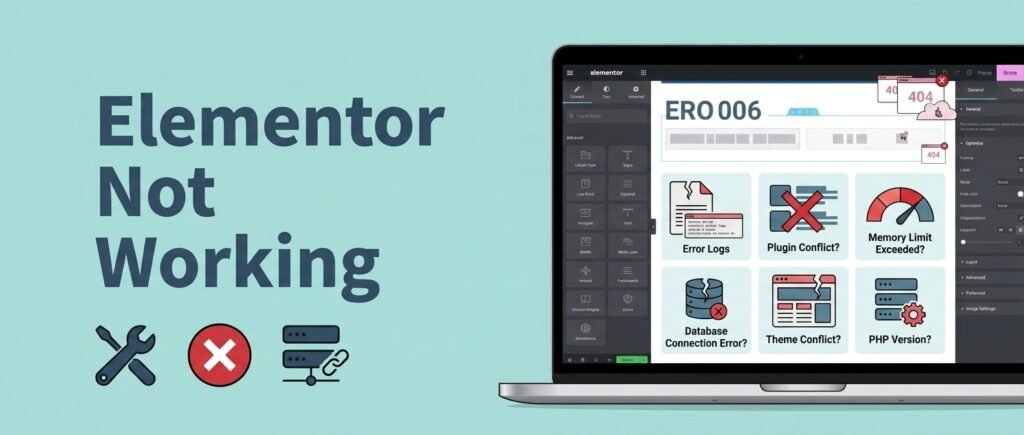
Elementor not working usually comes down to four causes: a PHP memory limit too low for the editor, a plugin or theme conflict, stale CSS that needs regenerating, or a version mismatch between Elementor and Elementor Pro. Identify your exact symptom first, because each one points at a different fix.
Elementor breaks in specific, recognisable ways. The symptom tells you far more than most troubleshooting lists suggest. An editor that will not load is a different problem from changes that will not save, which is different again from a page that looks perfect in the editor and wrong on your live site. This guide sorts them by symptom, then fixes each one properly.
Why is Elementor not working? Match your symptom to the cause
| What you are seeing | Most likely cause | Where to go |
|---|---|---|
| Editor will not load, or spins forever | Memory limit, or a version mismatch between Elementor and Pro | Sections 1 and 2 |
| Update or Publish button does nothing | AJAX save failing, often memory or a security plugin | Section 3 |
| Server error 500 when publishing | Memory limit, revision bloat, or a plugin conflict | Section 4 |
| Looks right in the editor, wrong on the live site | Stale CSS plus caching layers | Section 5 |
| Styling disappears until you clear cache | Cache plugin settings conflicting with Elementor | Section 5 |
| Layout broke right after an update | Version mismatch or CSS not regenerated | Section 2 |
| Desktop fine, mobile broken or duplicated | Responsive settings, not a bug | Section 6 |
| Widgets missing from the panel | Element Manager, or an expired Pro licence | Section 2 |
Work through the section that matches your symptom. Do not run every fix at once. If the site starts working you will not know what actually fixed it, and the same problem will return.
The fastest way to diagnose Elementor not working: Safe Mode
Before anything else, use Elementor’s built-in Safe Mode. It loads the editor with all other plugins disabled and a default theme, without changing anything on your live site.
Open the editor, click the hamburger menu, then Help, then Safe Mode. If everything works in Safe Mode, you have a plugin or theme conflict and can stop guessing. If the problem persists in Safe Mode, the cause is Elementor itself, your server, or your memory limit.
This one step splits every problem below into two much smaller problems, and it takes about thirty seconds.
Section 1: Editor will not load
An editor that hangs on the loading screen or spins indefinitely is almost always a memory problem. The Elementor editor is far heavier than the front end of your site.
Raise the PHP memory limit. Add this to wp-config.php, above the line that says “That’s all, stop editing”:
define( ‘WP_MEMORY_LIMIT’, ‘512M’ );
Elementor’s own requirements sit above the WordPress default, and 256M is the practical minimum for a real site. If the limit will not rise, your host caps it at the server level, so ask them to raise it. A memory ceiling you cannot move is a hosting limitation rather than an Elementor fault.
Check for a JavaScript error. Open your browser console (F12, then Console) and reload the editor. A red error naming a specific plugin file identifies the culprit immediately.
Rule out the theme. Switch temporarily to Hello Elementor or another default theme. If the editor loads, your theme is conflicting.
Try a different browser and disable extensions. Ad blockers and privacy extensions block editor requests more often than people expect.
Section 2: Version mismatch (the one nobody checks)
This deserves its own section, because it happens constantly and rarely gets diagnosed correctly. Elementor and Elementor Pro must run compatible versions. When a batch of plugin updates leaves them out of step, the editor turns unreliable, widgets vanish from the panel, and layouts break in ways that look random.
Check Plugins in your dashboard and confirm both are updated and neither is flagged. Also check your Elementor Pro license status under Elementor, then License. An expired licence stops Pro widgets from loading and produces exactly the “my widgets disappeared” symptom.
If an update broke your site, roll back both plugins together, never just one. Rolling back only Elementor while Pro stays newer creates the mismatch you are trying to escape. Elementor includes a version rollback tool under Elementor, then Tools, then Version Control. After rolling back, regenerate CSS (Section 5) and disable auto-updates for both until you resolve the conflict.
Prevention here is simple, and it repeats the lesson behind every other WordPress problem. Test updates on staging first, and update one thing at a time. That is precisely the discipline a maintenance routine provides.
Section 3: Changes will not save, or the Update button does nothing
Understanding the mechanism makes this much easier to fix. When you click Update, Elementor sends an AJAX request to your server containing the entire serialized data for that page: every widget, setting and style value. Your server processes it in PHP and writes it to the database.
That save never completes if the request is too large, the server times out, a plugin intercepts the call, or the database write fails. Work through these in order.
Narrow it to one page or all pages
One page failing while others save fine points at that page’s size or a specific widget. Every page failing points at a server or plugin issue. This single check saves most of the guessing.
Raise the memory limit
Use the same wp-config.php change from Section 1. This is the most common single fix for saves that hang or fail silently.
Allow the admin AJAX endpoint through your firewall
Security plugins and server firewalls frequently block or rate-limit /wp-admin/admin-ajax.php, which silently kills every save. Add an exception for that path and the Elementor editor URL for logged-in administrators. If you run a security plugin or a WAF, check this before anything else.
Read the actual error
Add these to wp-config.php, attempt a save, then open wp-content/debug.log:
define( ‘WP_DEBUG’, true ); define( ‘WP_DEBUG_LOG’, true ); define( ‘WP_DEBUG_DISPLAY’, false );
An explicit “could not save” message usually means PHP caught an error and returned it, and the log names the source. This is the fastest route to a precise answer, and it works the same way as diagnosing other WordPress errors.
If changes save but revert on reload, that is not a save failure at all. A caching layer is serving you the old page. Go to Section 5.
Section 4: Server error 500 when publishing
A 500 at the exact moment you publish is a distinct problem from a site-wide 500 error. It has three usual causes.
Memory limit reached
Elementor’s own support team names this as the first cause for publish-time 500s. Raise it to 512M as above, then retry the publish before changing anything else.
Revision bloat
This one is underrated. Every save creates a post revision, and a heavily edited page can accumulate thousands. One documented case had over 6,000 revisions on a single page. The combination of page size, revision count and PHP memory produced a 500 on every publish attempt while nothing appeared in the server error log.
Clean revisions with a database optimisation plugin, then cap them going forward by adding this to wp-config.php:
define( ‘WP_POST_REVISIONS’, 10 );
A bloated revisions table also slows the whole site down, so this is worth doing regardless.
A plugin conflict
Multilingual plugins in particular have produced publish-time 500s, sometimes only on pages in one language. Safe Mode confirms it, then reactivate plugins one at a time to find which one.
A useful detail: check your server’s error log through your hosting panel, not just WordPress. The publish request appears as a POST to admin-ajax.php returning 500, which confirms the failure point even when PHP logs nothing useful.
Section 5: Looks right in the editor, wrong on the live site
This is the most common form of Elementor not working, and the most misunderstood, because two separate things are involved and people only do one of them.
Elementor’s generated CSS files. Elementor writes your design out to physical CSS files on the server. Stale files mean the live page loads old styles no matter what the editor shows.
Your caching layers. A caching plugin, your host’s server cache, your CDN and your browser each store copies of pages and files.
Regenerating CSS and clearing cache are different operations on different layers. Doing one without the other leaves you looking at the old version. Run them in this order:
- Elementor, then Tools, then Regenerate Files & Data. This deletes and rebuilds Elementor’s CSS from your current design.
- Clear your caching plugin (WP Rocket, LiteSpeed Cache, W3 Total Cache, whichever you run).
- Purge your CDN if you use Cloudflare or similar.
- Hard refresh your browser with Ctrl+Shift+R, or check in an incognito window.
On a large site, regeneration can time out. If it does, run Elementor, then Tools, then Replace URL first to stabilise database references, then retry.
Cache plugin settings that break Elementor
If styling only looks correct until the cache rebuilds, and then breaks again, your cache plugin settings are fighting Elementor. Two specific settings cause most of it:
- Minify CSS and JavaScript. Elementor already optimises its own assets, and double-minification breaks layouts. Turn it off in your cache plugin.
- Combine CSS and JavaScript. Combining Elementor’s dynamically generated files regularly produces errors. Keep it disabled.
This affects LiteSpeed Cache, WP Rocket and similar plugins equally. Neither product has a bug. Two optimisation systems are simply processing the same files.
If it is still wrong after all that
The problem is CSS specificity, meaning another rule is winning. Right-click the element, choose Inspect, and look at the Styles panel. Your rule may sit there crossed out. The rule at the top that is not crossed out controls the element, and the filename beside it names the source, usually your theme’s stylesheet or a plugin.
One more thing to check if you have written custom CSS: a single syntax error, such as a missing closing bracket, breaks every rule after it. That produces styling that works in the editor panel and fails entirely on the front end.
Section 6: Desktop fine, mobile broken
Almost every “mobile is broken” report turns out to be responsive settings rather than a fault. Elementor lets you set different values per device, and changing one without realising is easy.
Check these:
Device-specific values. Open the editor, switch to the mobile view using the responsive icons, and check padding, margin, font size and column width for that breakpoint specifically. A value set on desktop does not always carry down.
Hidden or duplicated sections. Under Advanced, then Responsive, each element has visibility toggles per device. A “duplicate section appearing only on mobile” is usually two sections where one is hidden on desktop and the other is hidden on mobile, with one toggle set wrong.
Fixed widths and absolute positioning. These cause most horizontal scroll and overflow problems on phones.
Test on a real device, not just the editor preview. The editor’s responsive mode approximates. It does not render exactly like a phone.
Section 7: Elementor and Core Web Vitals
Two Elementor-specific performance problems come up repeatedly, and both are fixable without leaving the platform.
Your LCP element is a CSS background image. Elementor makes it easy to set a hero image as a section background. Browsers cannot prioritise a CSS background the way they prioritise a real image tag. If your Largest Contentful Paint is failing on a hero section, rebuilding it so the image is an actual Image widget often fixes it directly.
INP failing on mobile. Interaction to Next Paint measures responsiveness, and it suffers when a page carries heavy JavaScript from stacked addon plugins. Auditing which addons actually load on that page usually beats any caching change.
Both of these, plus the wider question of why Elementor sites tend to run heavy, are covered in the Elementor speed guide.
Section 8: When Elementor not working is not Elementor at all
Check these before you spend another hour in the editor. They present as Elementor problems and are not.
A conflict between two other plugins. A frequently reported example is a caching plugin and a form plugin together breaking form submissions on Elementor pages. The page builder gets blamed because the form lives there. Diagnose it the same way you would any plugin problem. If the form submits but nobody receives the notification, that is a mail problem instead, and our guide to WordPress emails not sending covers it.
Host-level blocking. Some managed hosts flag heavy editor activity, and some firewalls rate-limit admin AJAX. If Safe Mode shows the same behaviour and your memory limit is generous, contact your host and ask specifically whether admin-ajax requests are being limited.
A memory ceiling you cannot raise. If your host caps PHP memory below what the editor needs, no configuration change on your side will fix it. That is a hosting decision, and the honest answer is a better plan or a different host.
Preventing most cases of Elementor not working
These problems cluster around updates and around neglected sites, so the prevention list stays short.
Test updates on a staging copy before they touch your live site. Update one plugin at a time so a break identifies itself. Keep Elementor and Elementor Pro on compatible versions, and keep the Pro license active. Cap post revisions before they accumulate. Stay deliberate about your addon count, since every addon is another update that can conflict. And take a backup before any update, because a five-minute rollback beats a six-hour reconstruction every time.
Conclusion
Elementor problems get easier when you match the symptom to the cause rather than working through a generic checklist. Use Safe Mode first, because it separates plugin conflicts from everything else in thirty seconds. Editor loading failures and publish-time 500 errors are usually memory limits, with revision bloat as a frequently missed contributor. Save failures often trace to a security plugin blocking admin-ajax.
The most common complaint of all, correct in the editor and wrong on the live site, needs both operations in order. Regenerate Elementor’s CSS files first, then clear every cache layer, because they are separate systems and doing one without the other changes nothing. If an update broke things, roll back Elementor and Pro together, never just one.
Frequently asked questions
Why is my Elementor editor not loading?
Usually the PHP memory limit is too low, since the editor is much heavier than your front end. Raise it to 512M in wp-config.php. If that does not help, check the browser console for a JavaScript error naming a plugin, switch to a default theme, and use Safe Mode to rule out conflicts.
Why is Elementor not saving my changes?
When you click Update, Elementor sends the whole page’s data to your server as an AJAX request. Saves fail when memory runs out, the server times out, or a security plugin blocks /wp-admin/admin-ajax.php. Raise your memory limit, allow that endpoint through your firewall, and enable WP_DEBUG_LOG to read the actual error.
Why do I get a 500 error when publishing in Elementor?
Three usual causes: the PHP memory limit is reached, the page has accumulated thousands of post revisions making the save too heavy, or another plugin conflicts during the save. Raise memory to 512M, clean and cap revisions, then use Safe Mode to test for a plugin conflict.
Why does my Elementor page look different on the live site?
Elementor writes your design to CSS files, and your caching layers store copies of those files. If either is stale you see the old version. Go to Elementor, Tools, Regenerate Files and Data, then clear your caching plugin, your CDN and your browser, in that order.
Is Elementor not working after an update a version problem?
Often, yes. Elementor and Elementor Pro must run compatible versions, and a batch update that moves one without the other causes unreliable editing, missing widgets and broken layouts. Roll back both together using Version Control, then regenerate CSS. An expired Pro licence produces the same missing-widget symptom.
My Elementor widgets disappeared. What happened?
Most often an expired Elementor Pro licence, which stops Pro widgets loading, or a version mismatch after an update left Elementor and Elementor Pro out of step. Check your licence status under Elementor, then License, and confirm both plugins run compatible versions. Widgets can also be switched off in Element Manager.
Still stuck with Elementor not working?
Some of these take five minutes. Others turn into an afternoon of elimination across plugins, hosting limits and cache layers, usually on the site you can least afford to break. Survyc is an AI-first digital agency that fixes and maintains WordPress and Elementor sites white label for agencies, so your client sees their site working and you get the credit. Contact us or email info@survyc.com and tell us what the editor is doing.
