

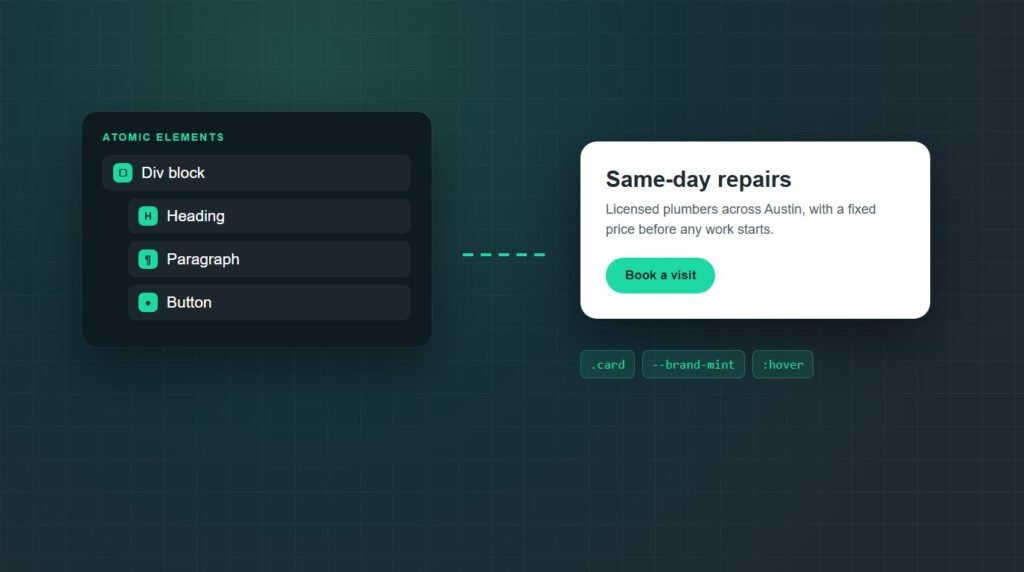
The Atomic Editor is Elementor's version 4 editor. It replaces the classic widgets with atomic elements, small single-purpose blocks such as Div block, Heading, Paragraph, and Button, all styled through one shared Style tab with reusable classes and variables. It became the default for new Elementor sites in April 2026.
This site, survyc.com, is built with the Atomic Editor: the homepage, the service pages, and the article you are reading now. So this is not a feature list copied from a launch post.
Below is what the Atomic Editor is, what actually changes compared with the classic Elementor editor, what the output looks like in real HTML, and what I ran into while building pages with it.
What is the Atomic Editor?
The Atomic Editor is the name for version 4 of the Elementor editor. Elementor describes it as "an atomic, CSS-first, performance-optimized architecture" in its Version 4 FAQ. In practice, it changes two things: the building blocks you drag onto a page, and how you style them.
"Atomic" refers to the building blocks. Instead of large widgets that each bundle their own layout, spacing, and styling options, you combine small elements that do one job each: a Div block holds things, a Heading shows a heading, a Button is a button. You build a card, a hero, or a pricing table by nesting those atoms.
"CSS-first" refers to the styling. Every atomic element shares the same Style tab, and styles can be saved as classes and variables that you reuse across the site, the way a developer would write CSS, rather than setting colors and spacing separately on every widget.
When did the Atomic Editor launch, and do you have it?
Elementor released version 4.0 on April 15, 2026, and announced it as the new foundation for building with Elementor. From April 2026, every new Elementor site runs version 4 by default.
Existing sites are not moved over automatically. Updating the plugin leaves your pages exactly as they were, and you switch the Atomic Editor on when you are ready. Pages built with classic widgets keep working, and both kinds of elements can sit on the same page.
Where to switch it on or off
In the WordPress admin, go to Elementor, Editor, Settings, and open the Atomic Editor tab. The same screen turns it off again, so you can try it on a staging copy first.
What are atomic elements?
Atomic elements are the Atomic Editor's building blocks. Each one does a single job and renders as plain HTML, so you build larger pieces by nesting them rather than picking a ready-made widget. In Elementor 4.3.2, the version I tested, the panel lists them under their own Atomic Elements heading:
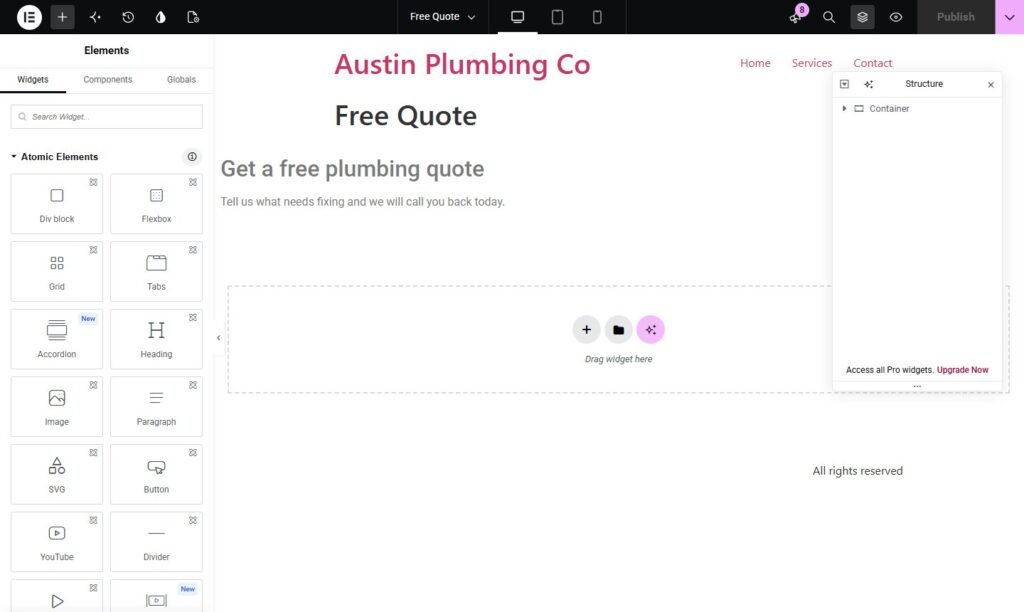
The classic widgets have not gone anywhere. They sit further down the same panel, so a page can mix both, and most third-party add-ons still ship classic widgets only.
How styling works in the Atomic Editor
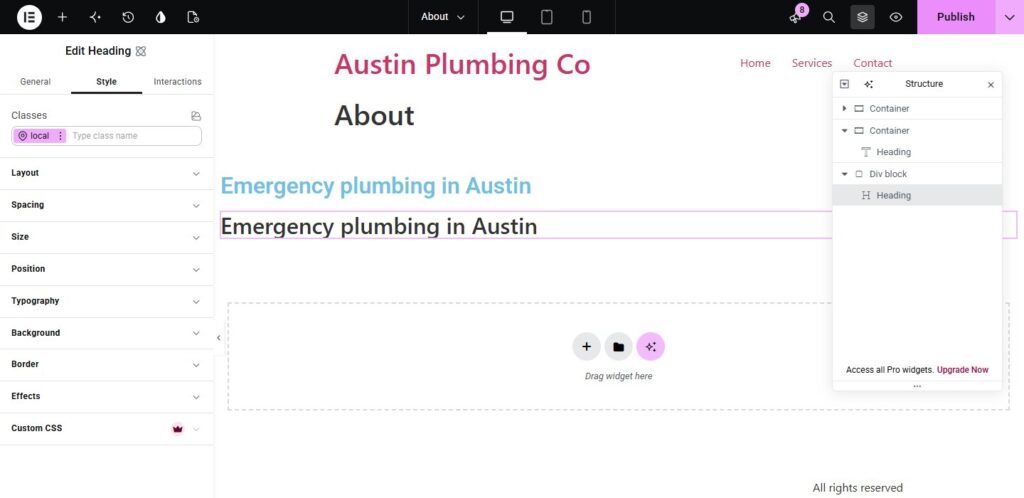
Styling is the part that feels most different. Every atomic element shares one Style tab with the same sections, whether it is a heading, a button, or a layout block, and every property can be set per device.
Classes
A class is a saved set of styles with a name. Style one card, save it as a class, apply it to twenty cards, and change all twenty by editing the class once. Without a class, an element uses its own local styles, which is what the "local" label in the screenshot means.
Variables
Variables are named values, such as a brand color, a font, or a spacing size, that classes and elements refer to. Change the variable and every element using it updates, which replaces the global colors and fonts of the classic editor with something closer to CSS custom properties.
States and Pro extras
States let you style hover, focus, and similar interactions directly in the same tab. Components, reusable sections that stay in sync across pages, and Atomic Forms are Pro features according to Elementor's version 4.0 announcement, and in my test the per-element Custom CSS field was marked Pro as well.
Atomic Editor vs the classic Elementor editor
The Atomic Editor keeps the drag-and-drop idea and changes almost everything underneath it:
What does Atomic Editor HTML look like?
The difference is easiest to see in the page source. Both of these come from the live homepage of this site, which mixes classic widgets in the footer with atomic elements in the main content. A classic Heading widget renders as a div wrapped around the heading:
<h3 class="elementor-heading-title elementor-size-default">Company</h3>
</div>
An atomic Heading renders as the heading tag itself, with no wrapper around it:
One wrapper per element sounds small, but a page is built from hundreds of elements; the homepage above is built from 289 atomic elements. Fewer nodes means less for the browser to parse and lay out, which feeds into Core Web Vitals. The class name e-6c508b82-7e5f is generated from the element's local styles, and the matching CSS is written to one stylesheet per page.
What I learned building a site with the Atomic Editor
Building this site's homepage, service pages, and blog posts with atomic elements taught me a few things the launch posts do not mention.
Classic and atomic elements mix without trouble
The homepage runs an atomic body inside a theme header and footer built with classic widgets. Nothing conflicts, so you can move one page, or one section, at a time. Page-level settings also work as before; for example, this is how to hide the header in Elementor on a single page.
The Paragraph element is strict about HTML
When I tested it, the atomic Paragraph kept only a small set of inline tags (links, bold, strong, underline, strikethrough, superscript, subscript, span, and line breaks) and removed every class and style attribute from them. Plan inline formatting around that before you paste in rich text.
Classes pay off from the second page
Styling the first page element by element is slower than in the classic editor. From the second page on, classes and variables make every card, button, and heading match without copying settings around.
Add-ons and some features are still classic or Pro
Third-party add-ons mostly ship classic widgets, and Components, Atomic Forms, and per-element Custom CSS need Pro. Check what your site relies on before committing a whole build. If the editor itself misbehaves, here is how to fix Elementor not working.
Should you use the Atomic Editor?
For a new site, yes: it is the default, and building with classes and variables from day one avoids a migration later. For an existing site, there is no rush, because classic pages keep working and you can adopt atomic elements one page at a time.
Try it on a staging copy before switching a live site, and see our Elementor services if you want help planning the move. If your Elementor pages are slow today, the atomic elements are one fix among several; our guide to speeding up an Elementor website covers the rest.
Key takeaways
What is Atomic Editor? It is Elementor's version 4 editor: small atomic elements instead of big widgets, one shared Style tab, and reusable classes and variables, producing lighter HTML with no wrapper around each element. It has been the default for new Elementor sites since April 2026.
Existing sites keep their classic pages and can mix both, so the move can happen one page at a time. Start new builds with classes and variables, test on staging, and check which add-ons and Pro features your pages depend on before converting everything.
Frequently asked questions
What is the Atomic Editor in Elementor?
The Atomic Editor is version 4 of the Elementor editor. It replaces classic widgets with atomic elements, small single-purpose blocks like Div block, Heading, and Button, styled through one shared Style tab with classes and variables. It has been the default for new Elementor sites since April 2026.
Is the Atomic Editor the same as Elementor V4?
Yes. Elementor uses Atomic Editor, Editor V4, and version 4 for the same thing. Version 4.0 was released on April 15, 2026. The name comes from its atomic elements, the small building blocks that replace the larger widgets of the classic editor.
Is the Elementor Atomic Editor free?
The core is free: atomic elements, the shared Style tab, classes, variables, and states all work in the free plugin. Some features need Elementor Pro, including Components, Atomic Forms, advanced interactions, and, in my test, the per-element Custom CSS field. Pro also covers popups, and creating a popup with the atomic editor is a good second project once the basics feel familiar.
Will the Atomic Editor break my existing Elementor pages?
No. Updating Elementor does not convert existing pages. Classic widgets keep working, and you can add atomic elements to the same page or leave a page untouched. The Atomic Editor can also be switched off under Elementor, Editor, Settings, Atomic Editor.
How do I turn on the Atomic Editor?
New sites have it on by default. On an existing site, go to Elementor, Editor, Settings in the WordPress admin, open the Atomic Editor tab, and turn it on. Try it on a staging copy first, since it changes the editor panel for everyone who edits the site.
Is the Atomic Editor faster than the classic editor?
The pages it produces are lighter. Each atomic element renders as its own HTML tag without a wrapper div, so a page ends up with fewer elements for the browser to process. Overall speed still depends on images, hosting, and scripts, so it helps rather than fixes everything.
Moving your site to the Atomic Editor?
Survyc is an AI-first digital agency, and this site is built with the Atomic Editor. We plan class and variable systems, rebuild key pages with atomic elements, and keep classic pages running while the move happens. Our Elementor services cover new builds and conversions.
Still asking what is Atomic Editor and whether your site should move? Send us the URL or email info@survyc.com, and we will tell you which pages to move first.
Talk to usLast reviewed: September 2026. Screenshots from Elementor 4.3.2; HTML examples from this site. The Atomic Editor is changing fast, so this guide is reviewed every quarter.
