

I added a cookie banner in WordPress with Elementor MCP by having an AI client build an Elementor Pro popup from atomic elements: 9.7 seconds of tool time, one layout fix, then six clicks in the editor for the template, display condition and trigger. The banner remembers Accept or Decline, but it is a notice, not consent management.
The log said 9.7 seconds. That was the entire tool time for the Elementor MCP to create the banner, publish it and set the popup frame. My own time, including the prompt, a look in the browser and one fix, was closer to three minutes. The editor still needed six clicks from me that no prompt can replace.
I ran the same tool calls an AI client makes, from a script, so I could put a stopwatch on each one. Everything below is from that run on survyc.com on 6 October 2026, with Elementor 4.3.3 and Elementor Pro 4.2.3. The prompt that produces the banner is in the second section, copied as written.
What you need before you startWhat a cookie banner in WordPress with Elementor MCP actually involves
A cookie banner in WordPress with Elementor MCP is an Elementor Pro popup that the AI builds for you: a bottom bar made of atomic elements, pinned to the bottom of the screen, with Accept and Decline buttons that close it and remember the choice. The MCP (Model Context Protocol) is Elementor’s bridge that lets an AI client call the editor directly, so the structure it builds is native Elementor, not HTML pasted into a widget.
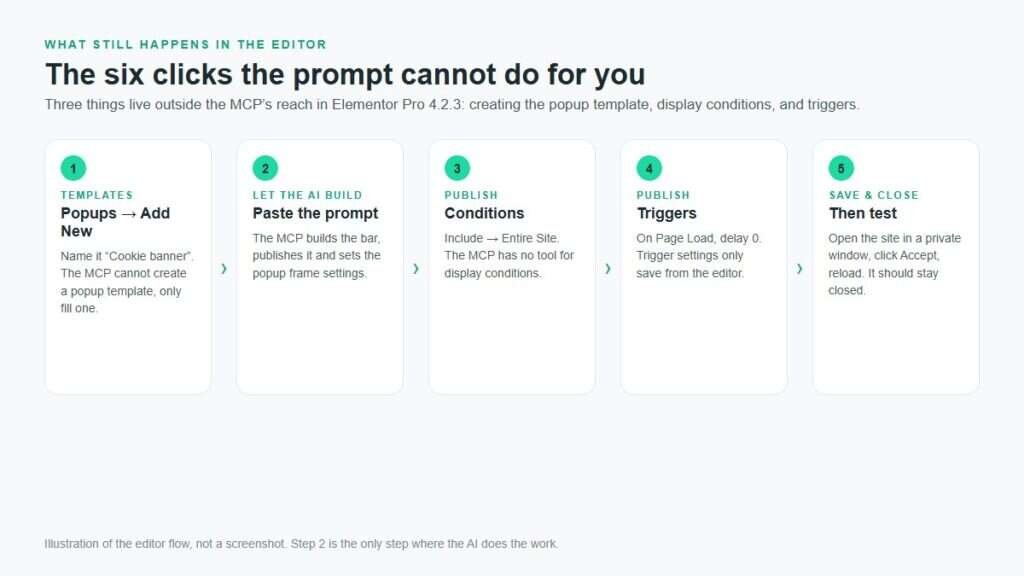
The split that matters: the MCP can fill a popup template, publish it and set the popup frame settings (width, position, overlay, close button, animation). It cannot create the popup template itself, set the display condition, or set the trigger. Those three live in the editor and account for the six clicks. Elementor’s MCP page lists what the server exposes.
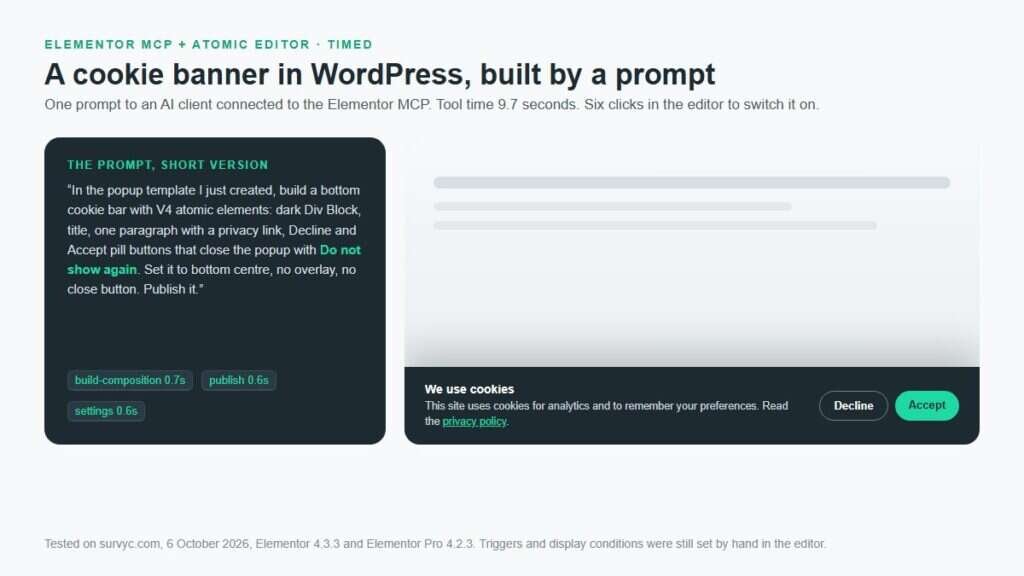
The prompt that builds the banner
Create the popup first, in the editor: Templates, then Popups, then Add New, and name it “Cookie banner”. Leave it empty and open your AI client. The prompt below is the one I used, written so the AI has every value it needs and nothing to guess. Change the colours and the privacy link to your own.
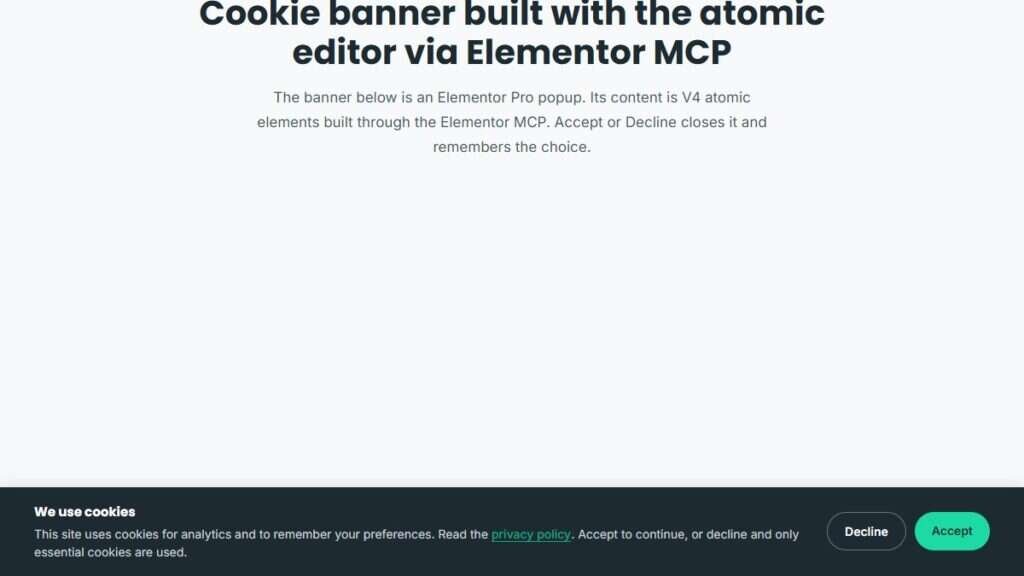
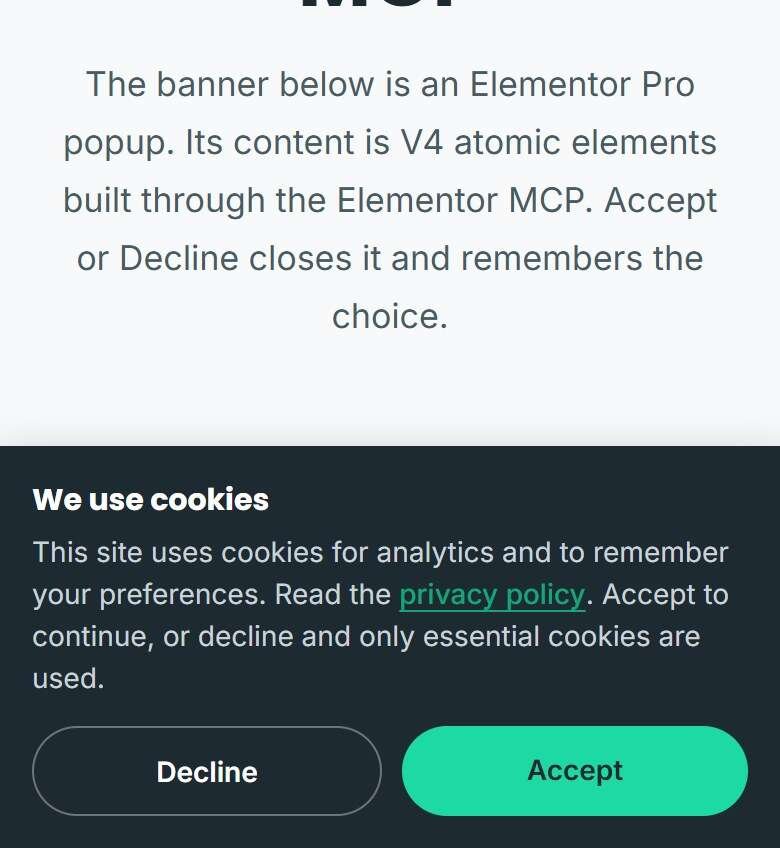
Structure: one full-width Div Block with background #1E2A32 and padding 18px 24px. Inside it, a Flexbox row with max-width 1120px centred, items aligned centre, space-between, gap 20px. Left column: a bold 15px white title "We use cookies", and a 14px paragraph in #C9D3D9 that reads: "This site uses cookies for analytics and to remember your preferences. Read the privacy policy. Accept to continue, or decline and only essential cookies are used." Link the words "privacy policy" to /privacy-policy/ in #1DD9A3. Right column: two pill buttons (border-radius 999px, 11px 20px padding, 14px semibold): "Decline" outlined in white at 35% opacity, and "Accept" with background #1DD9A3 and text #1E2A32.
Both buttons: set the Link to the Popup dynamic tag with Action = Close, Popup = this template, and "Do not show again" switched on.
On mobile: stack the columns, make the buttons full width, padding 16px.
Then set the popup document settings: width 1200px on desktop and 100vw on mobile, height auto, position bottom centre, overlay off, close button off, prevent closing on background click and on the ESC key, entrance animation slideInUp at 0.5 seconds, margin 0.
Publish the popup. Do not set display conditions or triggers; I will do those in the editor. Tell me the popup ID when you are done.
Two things in that prompt are not decoration. “Do not show again” on the close action is what makes Accept stick. And “overlay off, close button off, prevent closing on background click and ESC” is what turns a popup into a bar that waits for a choice instead of a modal people dismiss by accident.
How long does the Elementor MCP take to build a cookie banner?
9.7 seconds for the first build, end to end, and 5.4 seconds for the second build after one correction. Those are tool times: the seconds between the client sending each call and Elementor answering. The table is from the script log, so every number is one real call on a live site.
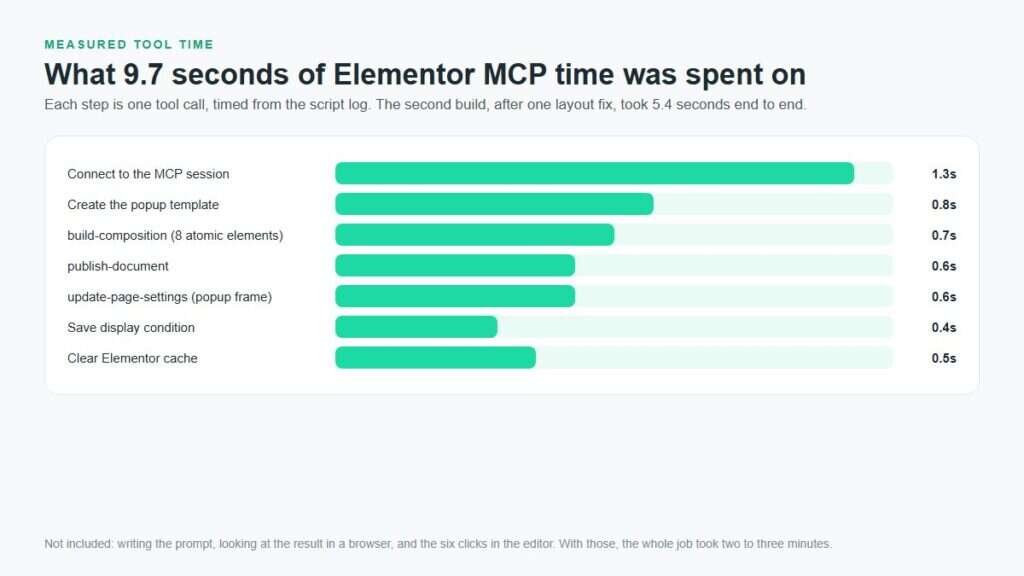
What the number does not include is me. Writing the prompt took longer than the build. Opening the test page, spotting a layout problem, changing one line and rebuilding took another minute. The honest total for a banner you would put on a client site is two to three minutes, most of it reading.
What went wrong on the first build, and the one line that fixed it
The first version rendered the text column a few pixels wide, so the notice wrapped one word per line down the left edge while the buttons floated in the middle. The cause was a flex rule, not the AI: the text column had no instruction to grow, and the button column was told not to shrink, so the text gave way.
Button column: flex:0 0 auto;
flex:1 1 auto; min-width:0;
Button column: flex:0 0 auto;
The prompt above already carries that fix (“space-between” on the row, and the left column allowed to grow). If your result shows the same symptom, ask the AI to give the text column flex-grow 1 and min-width 0, rebuild, and check again. The rebuild took 5.4 seconds.
The six clicks in the editor that the prompt cannot do
Six clicks, three of them before the prompt and three after. Before: Templates, then Popups, then Add New, and type the name. After the AI reports the popup is published: open it, click Publish, add a display condition, switch on a trigger, and save. In Elementor Pro 4.2.3 none of those three settings are reachable through the MCP; I tried passing the trigger through the document settings and it saved as empty.
Publish, then Conditions: Add Condition, Include, Entire Site. Exclude the privacy policy page if you do not want the banner covering the text it links to.
Triggers: On Page Load, delay 0. Nothing else. A cookie notice that waits for a scroll is a notice most visitors never see.
Advanced Rules: leave them off. “Show up to X times” would hide the banner from people who have not chosen yet.
Save and Close, then open the site in a private window. Click Accept, reload, and confirm the bar stays away.
If you want the frame settings explained, Elementor’s popup documentation covers each one. For the atomic side, including the trap of pasting an old action link into a V4 button, my guide on creating a popup with the atomic editor goes through it with screenshots.
Does Accept actually remember the choice, and what does it not do?
Yes, it remembers. When Accept or Decline is clicked, Elementor Pro writes two values into the browser’s localStorage under the key “elementor”: popup_1806_times set to 1 and popup_1806_disable set to true, where 1806 is the popup’s ID. I reloaded the page and the flag was still there. A popup carrying that flag refuses to open again, including from its page-load trigger.
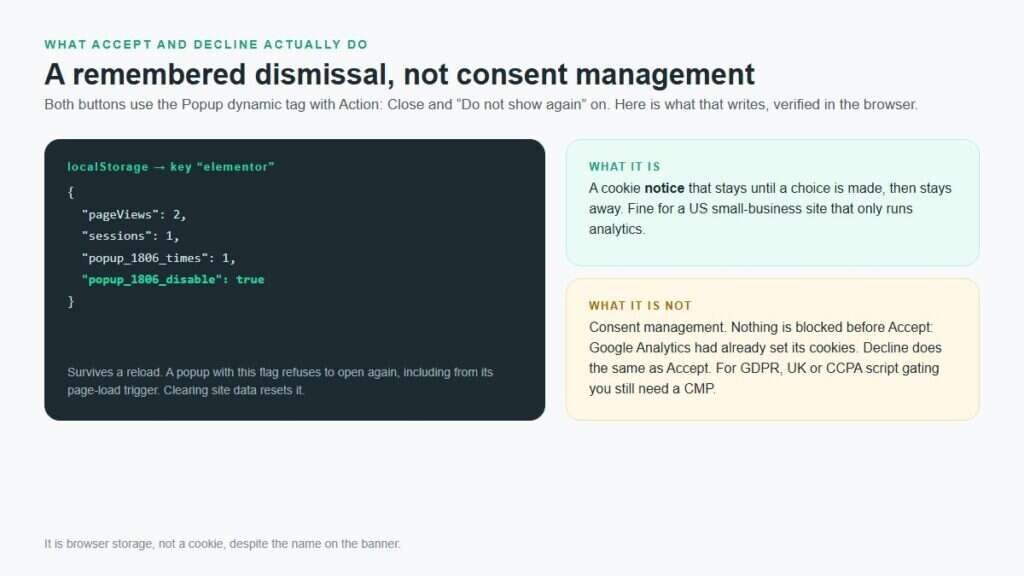
It is not consent management. Nothing is blocked before Accept: Google Analytics had already set its cookies when the page loaded, before either button existed on screen. Decline does exactly what Accept does. For a site that needs GDPR, UK GDPR or CCPA script gating, this bar is a notice on top of a consent management platform such as Complianz or CookieYes, not a replacement for one. I would not describe it to a client as “cookie consent”.
One more limit worth knowing: because the flag lives in localStorage, clearing site data brings the banner back, and a visitor who switches browsers sees it again. For a notice that is fine. For a record of consent it is not, which is the point above in different words.
Is building a cookie banner this way worth it?
For a cookie notice, yes, and the reason is not the ten seconds. It is that the prompt carries every setting in one place: colours, copy, the dynamic tag on both buttons, the frame settings. A second site gets the same banner by changing two lines. Building the same thing by hand means opening five panels and remembering which one hides the close button.
Where I would not use it: a site that already runs a consent plugin (two banners is worse than one), a site that needs real script gating, or a client who wants a cookie settings panel with categories. Those are plugin jobs. And if the site is slow before the banner exists, start with the Elementor speed fixes, because the popup loads on every page its condition covers.
If you are not on Elementor Pro, my guide to creating a popup in WordPress covers the plugin routes, and a cookie bar is one of the simplest things they do.
Key takeaways
A cookie banner in WordPress with Elementor MCP took 9.7 seconds of tool time on the first build and 5.4 on the second, plus two to three minutes of my own time for the prompt, a check and one fix.
The MCP builds and publishes the popup and sets its frame. Creating the template, the display condition and the trigger are still six clicks in the editor, on Elementor Pro 4.2.3.
Accept and Decline work through the Popup dynamic tag with “Do not show again”. Pro stores the choice in localStorage, and the banner stays away after a reload.
It is a notice, not consent management. Nothing is blocked before Accept, so sites that need script gating still need a consent platform underneath it.
Frequently asked questions
Can Elementor MCP create a cookie banner on its own?
Almost. It builds the banner’s content from atomic elements, publishes the popup and sets the frame settings in a few seconds. It cannot create the popup template, set the display condition or set the trigger in Elementor Pro 4.2.3, so those remain six clicks in the editor before and after the prompt.
How long does it take to add a cookie banner in WordPress with Elementor MCP?
In my timed run, 9.7 seconds of tool time for the first build and 5.4 seconds for a rebuild after one layout fix. Including writing the prompt, checking the result on desktop and mobile, and the editor clicks, the whole job took two to three minutes on a live site.
Does the banner remember when a visitor clicks Accept?
Yes. Both buttons use the Popup dynamic tag with Action set to Close and “Do not show again” on. Elementor Pro writes a disable flag for that popup into the browser’s localStorage, the banner stays closed after a reload, and it returns only if the visitor clears site data or uses another browser.
Is a cookie banner built with Elementor MCP GDPR compliant?
No. It is a notice with a remembered dismissal. Nothing is blocked before Accept, and Decline behaves exactly like Accept. For GDPR, UK GDPR or CCPA you need a consent management platform that gates scripts until consent is given. The banner can sit on top of one, but it cannot replace one.
Why does my text column collapse to a few pixels wide?
A flex rule. The button column is told not to shrink and the text column was never told to grow, so the text gives way. Ask the AI to give the text column flex-grow 1 and min-width 0, or use the prompt in this guide, which already includes it. The rebuild takes a few seconds.
Can I use the same prompt for a top bar or a corner box?
Yes, with two changes. For a top bar set the position to top centre instead of bottom. For a corner box set the width to around 380px, the position to bottom right, and add a margin of 24px. Everything else, including the dynamic tag on the buttons, stays the same.
Want the banner, or the whole Elementor site, handled?
Survyc is an AI-first digital agency, and Elementor work is a daily part of what we do: version 4 builds, MCP-assisted workflows, fixes and the small jobs like a banner that needs to sit right on every device. We work directly with businesses and white label for agencies, hourly or at a fixed price confirmed before we start. Tell us what the site needs or email info@survyc.com.
Talk to us about your Elementor siteLast reviewed: October 2026, on Elementor 4.3.3 and Elementor Pro 4.2.3. The MCP and version 4 change quickly, so this guide is re-tested every quarter.
